

OpenCart Advanced Security Manager Extension – Complete User Guide (Updated)
Most OpenCart store owners end up securing their site the hard way: one extension for two-step login verification, another for blocking spammy bots, a third for CAPTCHA, and maybe a support ticket to their host about a firewall. OpenCart Security Manager was developed to remove that patchwork. This module puts admin-side protection, storefront defense, and file-integrity monitoring into one settings screen inside your OpenCart admin panel.
Whether you’ve been searching for an OpenCart two-factor authentication extension, an OpenCart firewall extension, protection against login brute-forcing, or a way to disguise your admin directory without stacking five separate add-ons, this single extension is built to cover that ground.
The OpenCart Advanced Security Manager extension is organised into three sections, each broken into its own set of tabs:
Admin Protection: Two-Step Verification, Login Attempt Throttling, IP-Restricted Admin Access, Admin Directory Cloaking, Server-Level Login Prompt, and login activity tracking.
Storefront Protection: Web Application Firewall, Security Response Headers, Form Spam Filtering (CAPTCHA), Copy/Scrape Deterrents, and a storefront-wide access prompt.
File Integrity Monitoring: Scheduled scans, threat flagging, and a scan history log.
Each area is covered field-by-field later in this document, so you’ll always understand what a setting does before you switch it on.
Attackers targeting OpenCart stores tend to go after the same handful of weak points: guessable admin passwords, scripted login attempts, an admin directory sitting at its default path, unguarded contact/registration forms, and quietly altered core files. This extension is meant to close those specific doors without requiring a security consultant or a stack of unrelated add-ons.
Protection is applied in independent layers, and each layer covers a different surface – the admin login screen, storefront-facing forms, the headers your server sends back to browsers, and the files on disk.
The risk in plain terms: OpenCart, being widely used and open-source, is a routine target for automated scanning. Bots probe for default admin paths, hammer login forms with credential lists, and flood contact forms with spam. One compromised admin login can lead to stolen customer records, injected code, or a defaced storefront – outcomes that cost far more in cleanup and lost trust than the setup time this extension requires.
New Features Added to the OpenCart Advanced Security Manager Extension v1.0.1 ( Updated July 10, 2026)
Knowband’s OpenCart Security Extension has been upgraded with two major additions: a Security Dashboard and a frontend Honeypot Field under Spam Protection powered by Project Honeypot. Together, these give store owners a complete, real-time view of their store’s safety along with a stronger, hassle-free shield against automated attacks.
1. New Security Dashboard
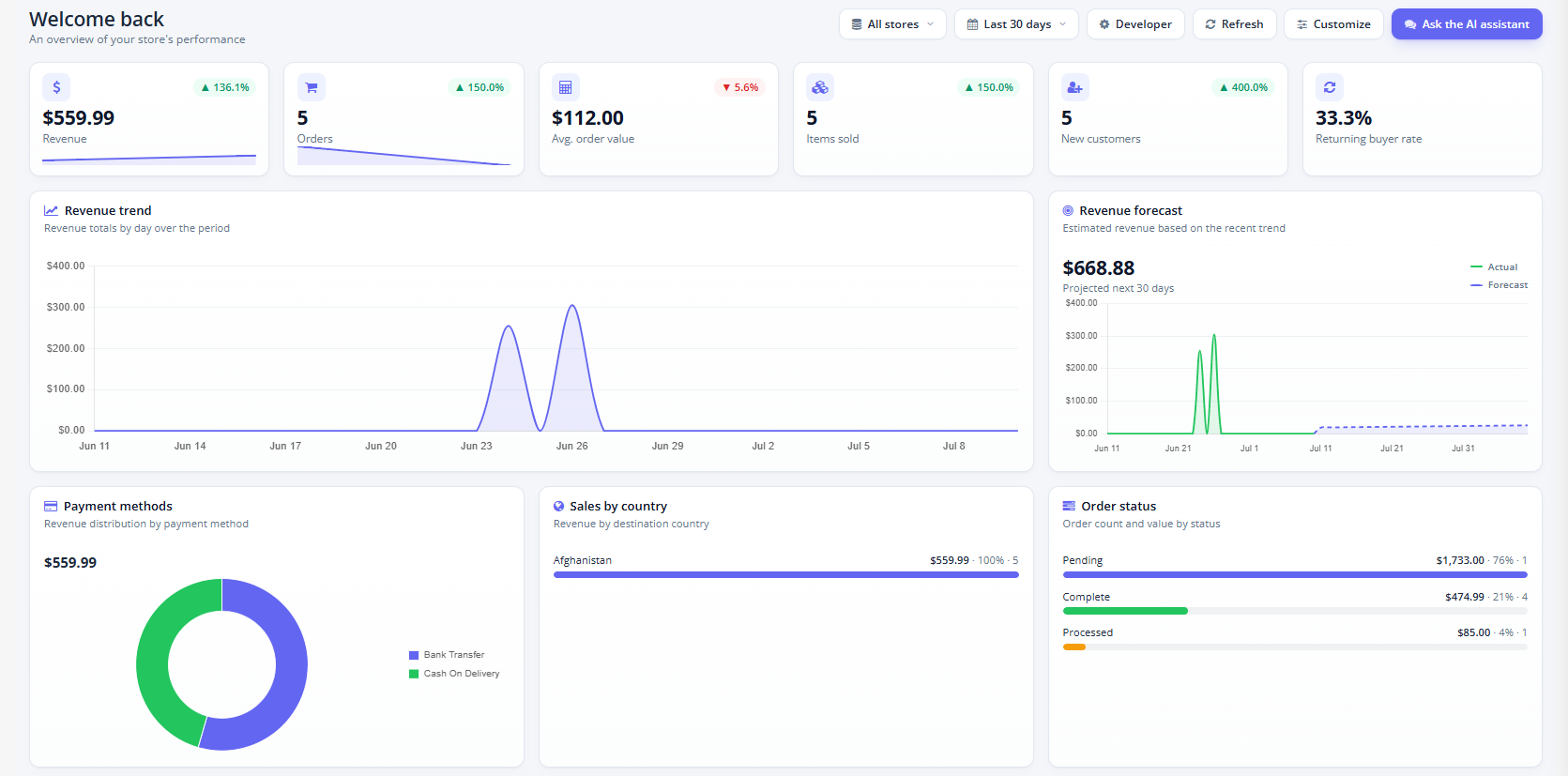
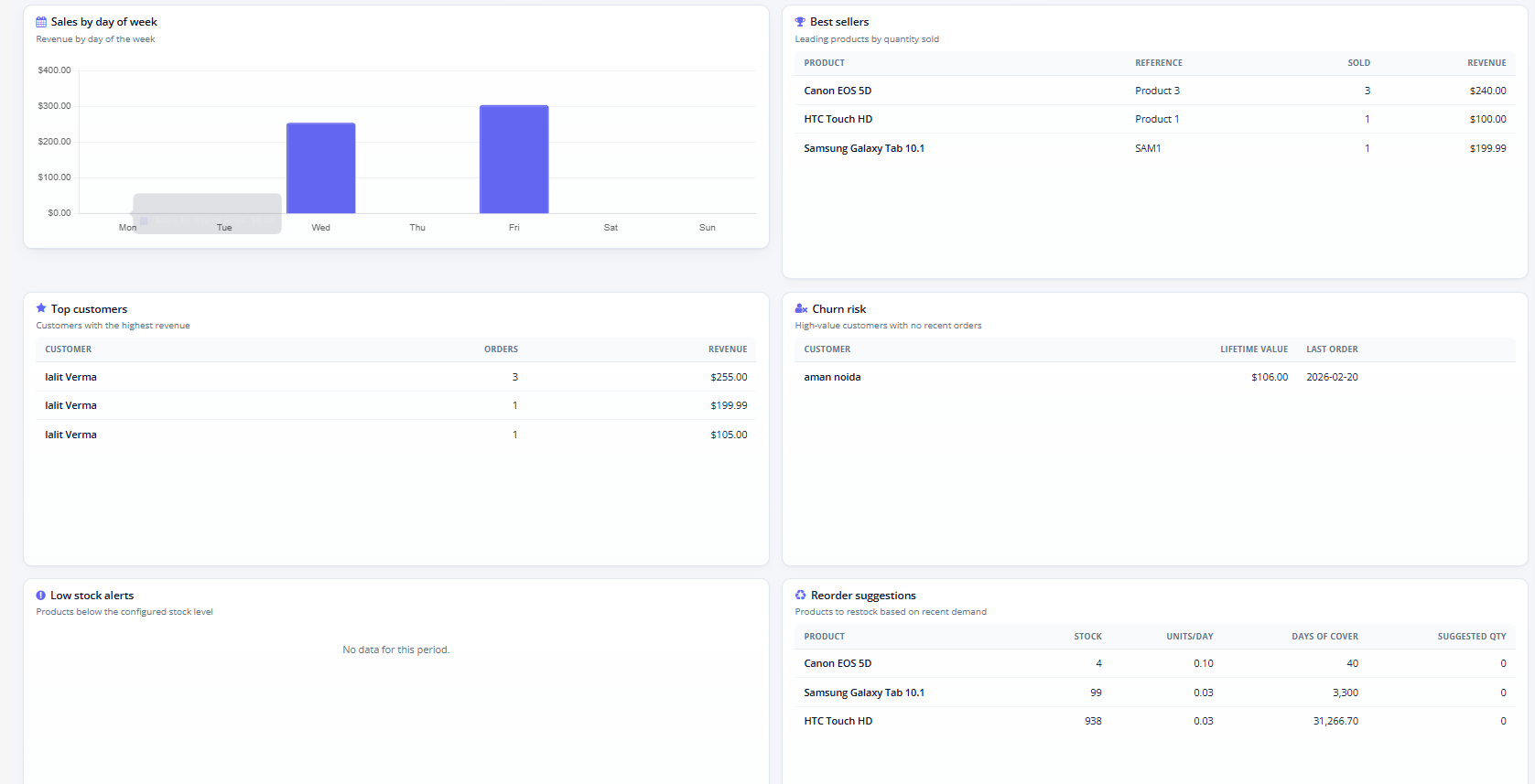
A centralised Security Dashboard is now available, giving OpenCart admins a single-screen overview of their store’s overall security health.
Key details displayed include:
- Security Score
- Active Security Protections
- Failed and Successful Login Attempts
- Login Success Rate
- Two-Factor Authentication Coverage
- Active IP Bans
- Spam Protection Statistics
- Flagged IP Addresses
- Bot Trapping Activity
- Recent Project Honeypot Classifications
- Top Attacking IP Addresses
- Top Targeted Admin Accounts
With this dashboard, merchants can track security activity as it happens and catch potential threats before they escalate.
2. Honeypot Protection
The new Honeypot feature adds an invisible layer of bot defence by embedding a hidden field within key storefront forms. Genuine shoppers never see it, but bots that auto-fill every field are instantly flagged.
- Protects Registration, Login, Contact, Newsletter, and Product Review forms
- Requires no theme modifications
- No dependency on third-party services
- Completely invisible to real customers
- Reduces spam submissions and fake account creation
For added protection against more sophisticated bots, this feature pairs effectively with the OpenCart Captcha Extension.
3. Project Honeypot Integration
This release also integrates the extension with Project Honeypot, a globally trusted service that identifies known spammers and malicious IP addresses. Rather than relying solely on form-based checks, this integration evaluates a visitor’s reputation before they even interact with your store’s forms.
Key highlights:
- Real-time IP reputation lookups via the Http-bl service
- Observer Mode to monitor suspicious visitors without blocking them
- Action Mode to automatically block flagged IP addresses
- Configurable ban duration
- IP whitelisting for trusted users, internal networks, and CDN services
- Detailed logs showing visitor reputation scores and the corresponding action taken
Key Features of OpenCart Security Manager Extension
Two-Step Verification (2FA)
Requires an admin to supply a rotating six-digit code from an authenticator app in addition to their password. This blocks account takeover even when a password has leaked, been guessed, or reused from another breach.
Example: A shop with three admin users might require 2FA for everyone except a contractor’s fixed office IP, which is exempted. Tip: whitelist your own reliable IP addresses before turning on sitewide enforcement, so you’re never prompted to enroll from a connection you can’t act from.
Login Attempt Throttling
Temporarily blocks an IP once it racks up too many failed admin logins inside a set window – no manual watching required.
Example: if a script fires 50 password guesses at the admin login in under a minute, the source IP gets banned automatically once the retry limit is hit. Tip: pair a moderate retry ceiling (5–10 tries) with a ban long enough to discourage a retry (15–30 minutes), and exempt your office or VPN IP so a typo doesn’t lock your own team out.
IP-Restricted Admin Access
Limits admin panel access to a defined list of addresses – anyone else is turned away before the login form even loads. This is the single strongest control against outside admin access, since the block happens before any credentials are checked.
Admin Directory Cloaking
This feature hides your real admin path behind a secret alternate URL; the genuine path returns a 404 to anyone who doesn’t know the alternate name. This takes your store out of the pool that bots find by scanning for common admin folder names.
Server-Level Login Prompt (HTTP Authentication)
Adds a browser-native username/password prompt in front of the admin panel, the storefront, or both – before OpenCart’s own login screen loads. This runs entirely outside the application, which is useful for staging sites, pre-launch stores, or an extra admin gate.
Web Application Firewall (WAF)
Screens incoming GET/POST data and cookies for known SQL injection, cross-site scripting, and path-traversal patterns, and blocks matches with an HTTP 403 before they reach OpenCart’s code.
Security Response Headers
Adds headers (HSTS, clickjacking protection, MIME-sniffing protection, referrer policy, permissions policy) that instruct browsers to enforce extra safeguards. This is a low-risk way to harden how browsers treat your site, and it’s frequently required on PCI and security-audit checklists.
Form Spam Filtering (CAPTCHA)
Adds CAPTCHA verification – Cloudflare Turnstile, Google reCAPTCHA, or hCaptcha – to the contact form and registration form, cutting spam submissions and fake sign-ups with no theme edits required.
Copy/Scrape Deterrents
Discourages casual content copying by disabling right-click, copy/paste, view-source, and DevTools shortcuts, raising the effort needed to casually scrape product text and images.
File Integrity Monitoring
Runs scheduled scans that compare your OpenCart installation against a known-good baseline, flagging new or altered files as possible threats – often surfacing a compromise before it shows up on the storefront.
Detailed Overview of the OpenCart Security Extension
Admin Protection – Covers your admin login and sessions: 2FA, login throttling, IP restriction, directory cloaking, server-level login prompt, and login monitoring (which includes a Users sub-view for managing individual 2FA enrollments).
Storefront Protection – covers customer-facing traffic: the firewall, response headers, spam filtering, cart-bot blocking, copy deterrents, and the storefront-wide login prompt.
File Integrity Monitoring – scan settings and history, including the cron URL used for scheduling and a searchable log of past scans.
At the top of every tab you’ll find the emergency recovery link – a permanent URL that switches off the extension’s restrictive features in one click if you ever get locked out. This is the single most important detail in this manual: find it now, before touching any other setting, and save it somewhere outside the admin panel. This is the important information that an admin owner should be aware of.

The Users view under Admin Protection lists every admin account (ID, name, email, current 2FA status) and lets you reset a lost or compromised authenticator enrollment so that person can register a new one on their next login.
Reporting lives in two places: the Login Attempt Log under Admin Protection (IP, timestamp, email, and result for every admin login attempt, once logging is turned on) and the Scan History table under File Integrity Monitoring (every scan run, manual or scheduled, with file counts, threat counts, duration, and a link to the full report).
How Each Feature Actually Works
Two-Step Verification
This uses the standard TOTP (Time-based One-Time Password) protocol – the same one behind Google Authenticator, Authy, and similar apps. When an admin turns on 2FA, or is required to via sitewide enforcement, they scan a QR code into their authenticator app, which then generates a new six-digit code every 30 seconds. That code is entered alongside the normal password at each login.
Login Attempt Throttling
Every failed admin login is logged against the IP it came from. Once failures from one IP cross the configured limit inside the configured window, that IP is blocked from further attempts until the ban period runs out.
IP-Restricted Admin Access
Once turned on, every request to the admin panel is checked against an allow-list before OpenCart’s routing runs at all. Anyone not on the list is blocked outright – they never reach the login form.
Admin Directory Cloaking
The extension intercepts requests to your real admin path and returns a 404 unless the visitor has already reached a secret alias URL, which sets a cookie and quietly forwards them to the real location.
Server-Level Login Prompt
This adds a separate, browser-native prompt – rendered by the browser itself rather than an OpenCart form – in front of the admin panel, the storefront, or both, enforced at the web-server level before any PHP logic runs.
Web Application Firewall
The WAF checks incoming query parameters, POST fields, and cookies against a library of known injection, XSS, and path-traversal patterns. A match triggers an immediate 403 before the request reaches OpenCart’s controllers.
Security Response Headers
Each toggle here adds one specific header telling the visitor’s browser to enforce a particular behavior – refusing to render the page in an iframe, refusing to guess file types, forcing HTTPS, and so on.
Form Spam Filtering
When enabled, the extension injects the chosen CAPTCHA widget into the storefront contact and registration forms automatically, with no theme editing, and verifies the response server-side before accepting a submission
Copy/Scrape Deterrents
A set of client-side restrictions – disabling copy/cut/paste, right-click, text selection, view-source, and DevTools shortcuts – applied across the storefront, with an IP whitelist for staff who need normal browser behavior.
File Integrity Monitoring
A scheduled job, triggered by your server’s cron scheduler hitting a unique, token-protected URL, scans every file in your installation, compares it to a maintained baseline of known-good OpenCart core and common extension files, and flags anything new, missing, or modified.
1.0.0 Admin Protection
Two-Step Verification
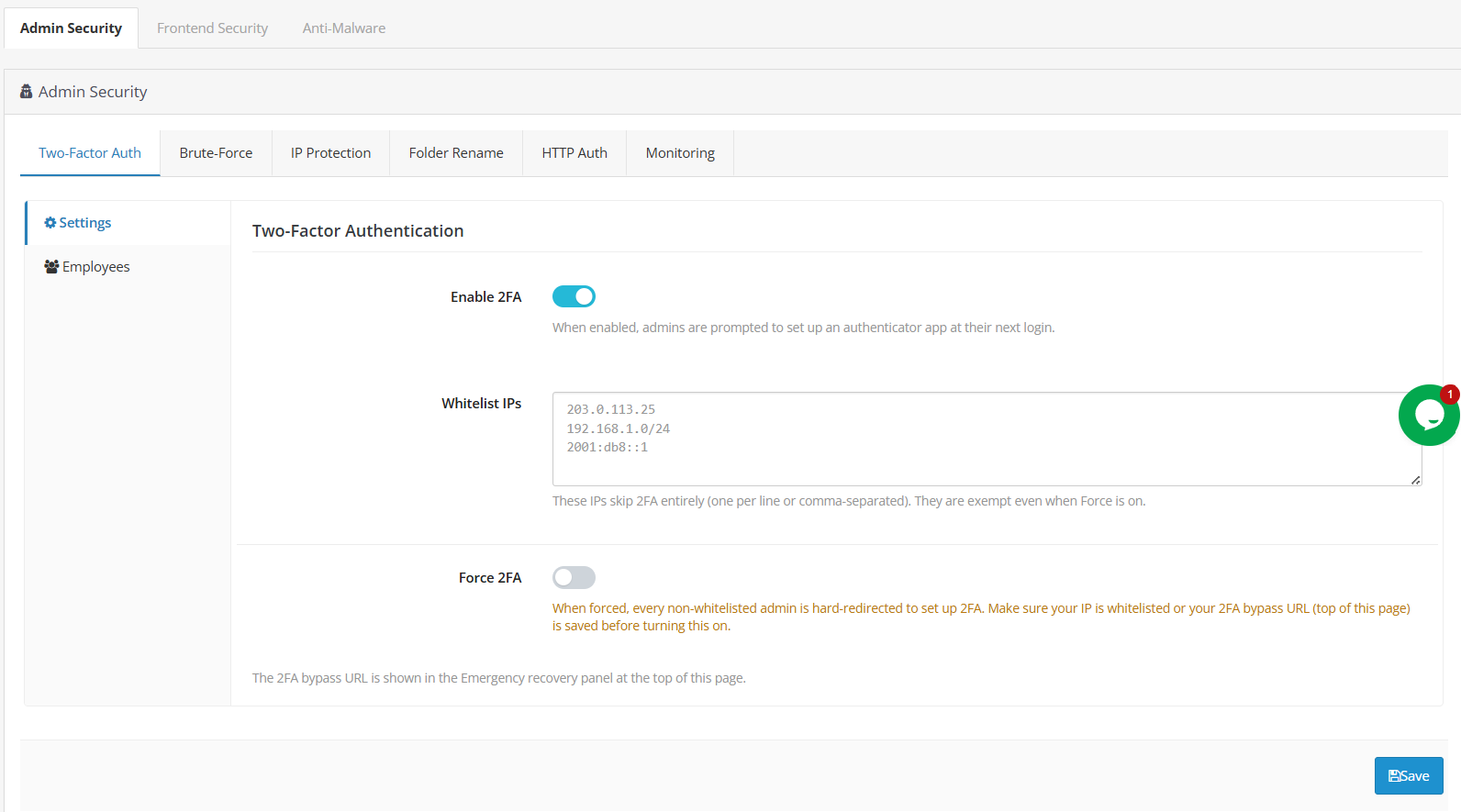
Enable 2FA – turns on 2FA support; admins are guided to set up an authenticator app at their next login.
Whitelist IPs – addresses that skip 2FA entirely, even when enforcement is on. Add your office or home network as a safety net before enforcing.
Force 2FA – requires every non-whitelisted admin to set up 2FA before proceeding. Only enable after whitelisting a trusted IP or confirming the recovery link works.
ID – identifies the admin account.
2FA Status – shows whether that account currently has 2FA enrolled. Worth reviewing periodically, especially after staff changes.
Actions – resets a lost 2FA enrollment so the user can register a new device. Use right away if someone loses their authenticator phone.
Rolling out 2FA as optional first, then switching to enforced once everyone’s enrolled, is the recommended path – it stops account takeover from a leaked, guessed, or reused password, since the password alone is no longer enough. Never enforce 2FA sitewide without first whitelisting at least one trusted IP or confirming the recovery link works, and keep that whitelist short and reviewed regularly, since those addresses bypass 2FA completely. Add “reset 2FA” to your offboarding checklist for departing staff.
Brute Force Protection
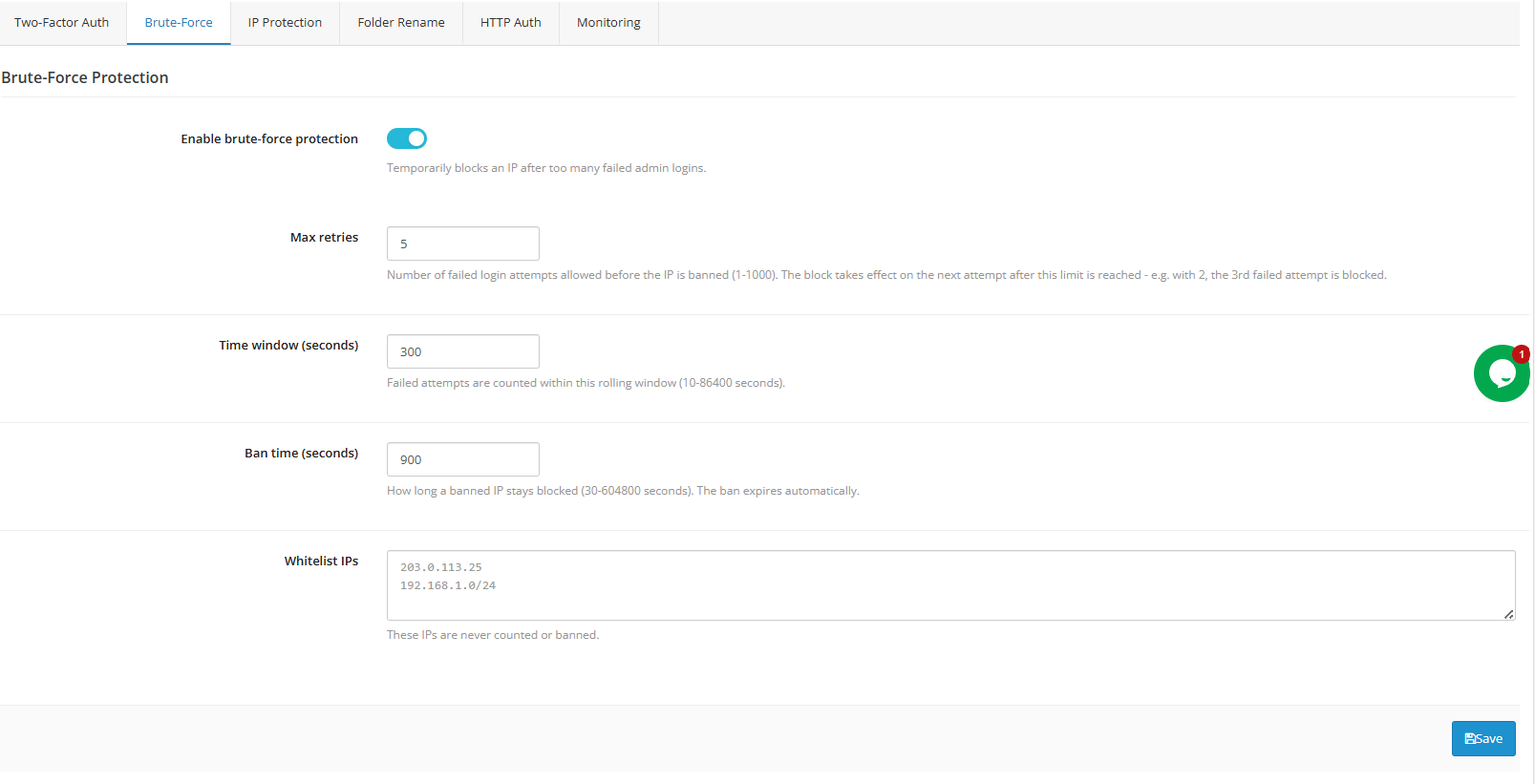
Enable throttling – Temporarily blocks an IP after too many failed admin logins. Recommended on any live store.
Max retries – Failed attempts allowed before a ban triggers. 5 is a reasonable default.
Time window (seconds) – The rolling window in which failures are counted. 300 seconds (5 minutes) works for most stores.
Ban time (seconds) – How long a banned IP stays blocked; it expires automatically.
Whitelist IPs – Addresses never counted toward the limit or banned.
Start with moderate values, check your login log after a week, and tighten if repeated attack patterns keep showing up from varied IPs. This works best paired with 2FA rather than alone – throttling slows attackers down, 2FA stops them outright even if a password is eventually guessed. Bans clear themselves once the timer runs out; there’s no need to manually unban anyone.
IP-Restricted Admin Access
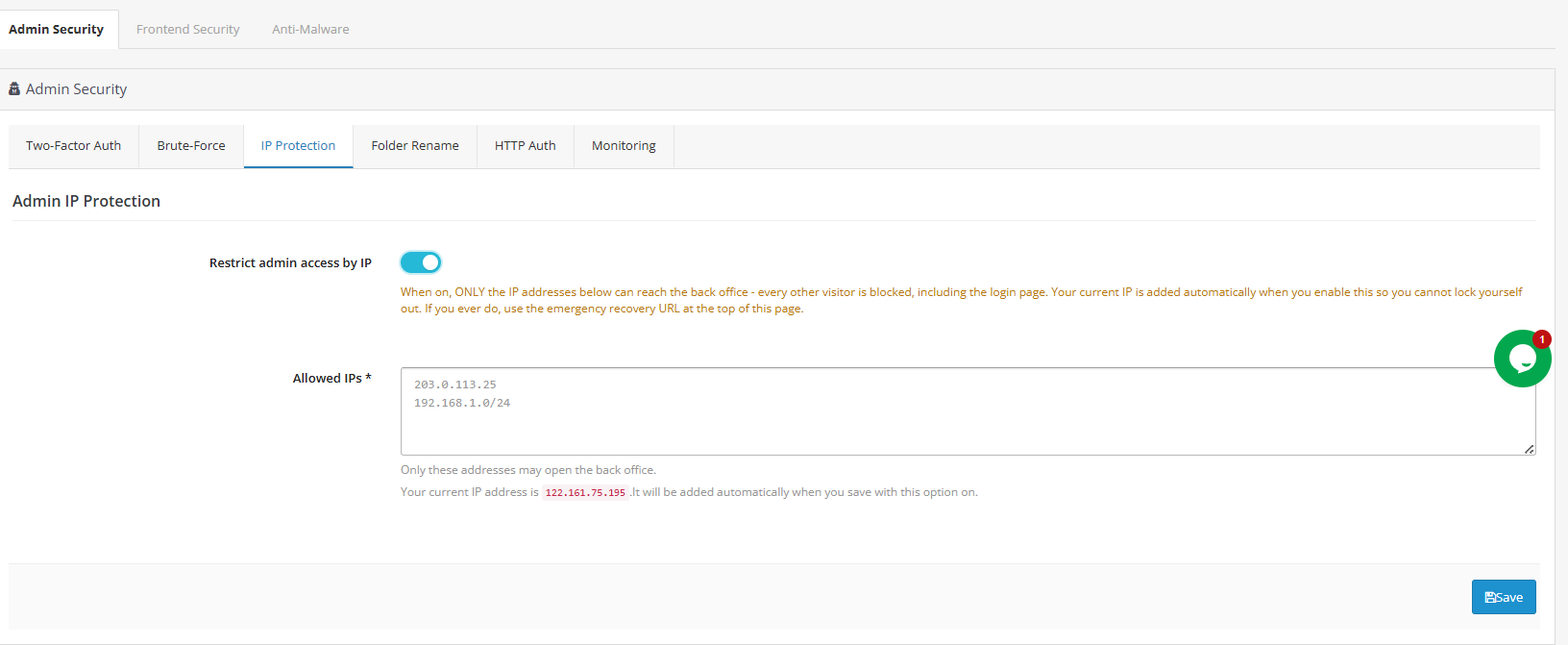
- Restrict Admin Access by IP: Limits admin panel access to a specific list of trusted addresses.
- How It Works: Once enabled, only listed IPs can reach the admin panel; every other visitor is blocked, including anyone attempting to reach the login page. Your current IP is added automatically the moment you enable this option, so you won’t lock yourself out.
- Allowed IPs (required): Only addresses entered here are permitted through.
Admin Directory Cloaking
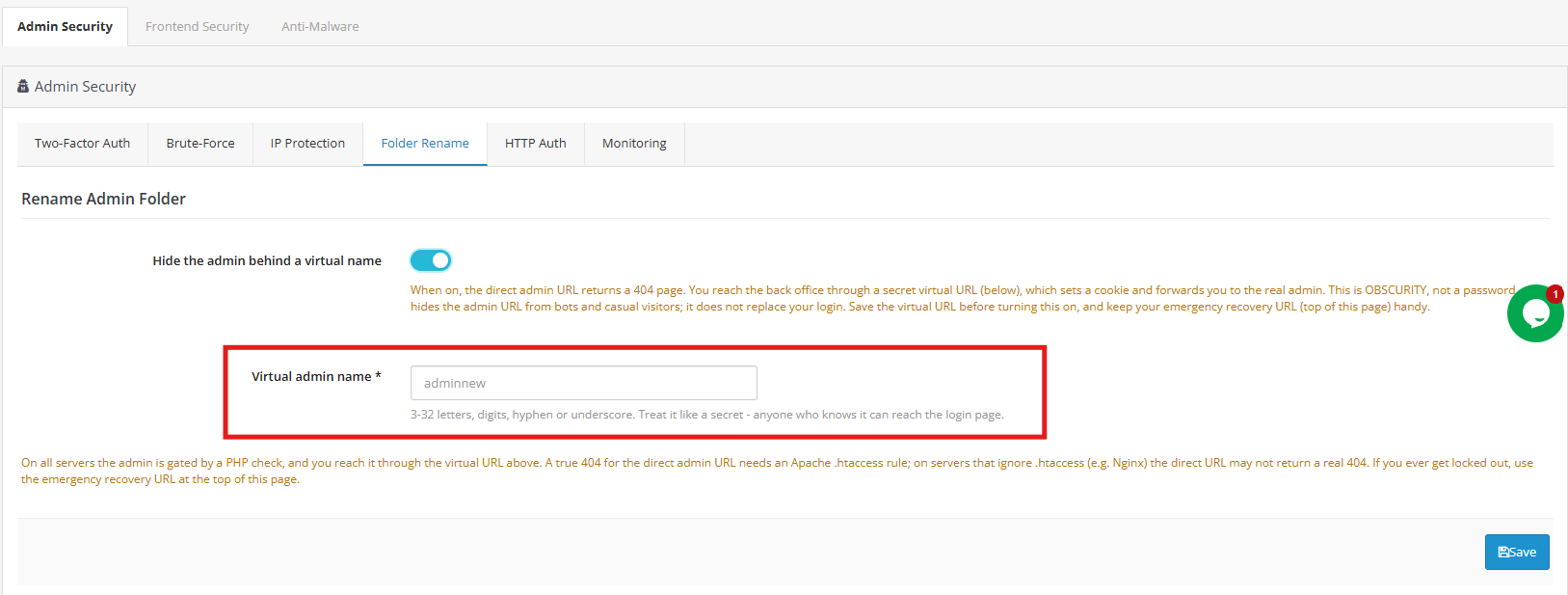
- Hide Admin Directory Name: Replaces your real back-office URL with a secret alias, removing your store from the pool of sites automated scanners find by guessing common admin paths.
- How It Works: When enabled, the direct admin URL returns a 404 response, and the panel is only reachable through the alias configured below.
- Alias Name: 3 to 32 letters, digits, hyphens, or underscores. Treat this as a secret, the same as a password.
Server-Level Login Prompt (Admin)
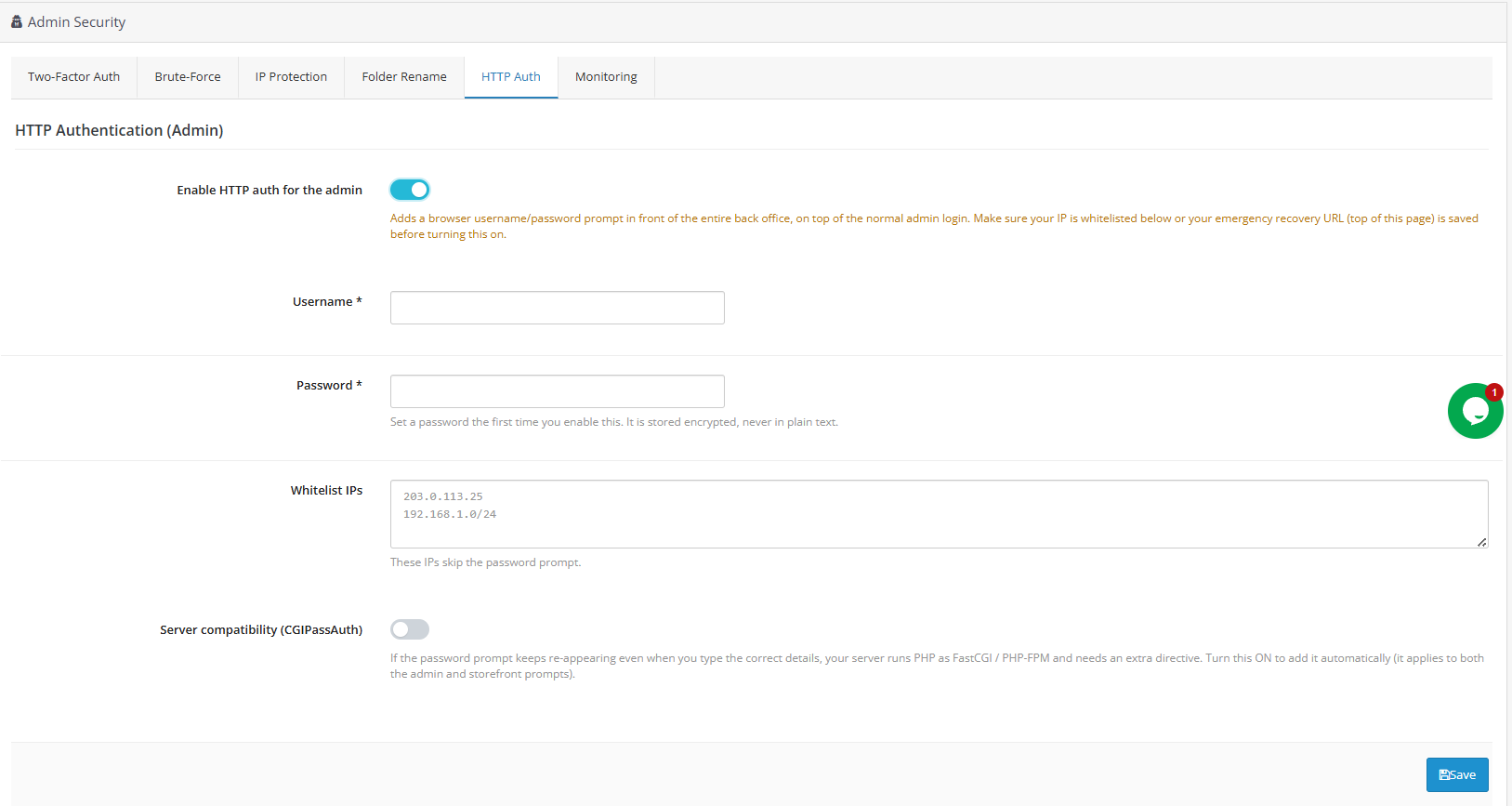
Part of the OpenCart password protection plugin functionality built into this extension, this feature adds a browser-native authentication layer in front of the admin panel itself.
- Enable HTTP Auth for the Admin: Adds a username/password prompt before the admin login screen even loads.
- Username / Password: Credentials for the prompt; the password is stored encrypted and never saved in plain text.
- Whitelist IPs: Addresses that skip the prompt entirely.
- Server Compatibility (PHP-FPM/FastCGI): Adds a directive needed on servers where the authentication header isn’t otherwise passed through correctly.
Login Monitoring
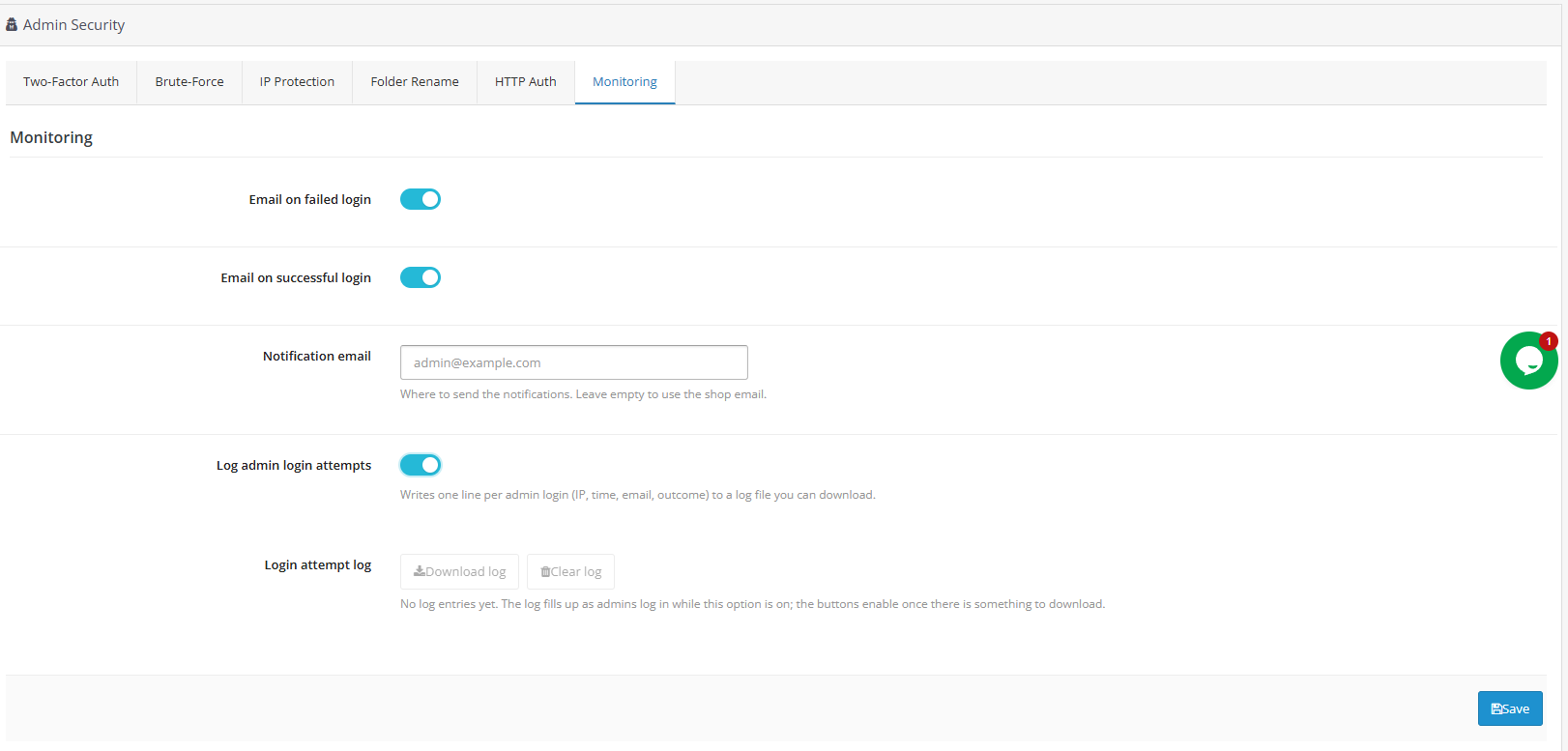
A core feature of this OpenCart login security plugin, this tab provides visibility into every admin login attempt made against your store.
- Email on Successful Login: Sends a notification whenever an admin logs in successfully.
- Notification Email: Where alerts are sent; defaults to your store’s email address if left blank.
- Log Admin Login Attempts: Records the IP address, time, email, and outcome for every login attempt to a downloadable log.
- Login Attempt Log: The log itself; download buttons activate once entries exist.
2.0.0 Storefront Protection
Storefront Protection covers everything a customer or a bot interacts with directly. This is where the firewall, CAPTCHA, and security-header functionality of this OpenCart security extension all work side by side, each addressing a different customer-facing threat.
Web Application Firewall
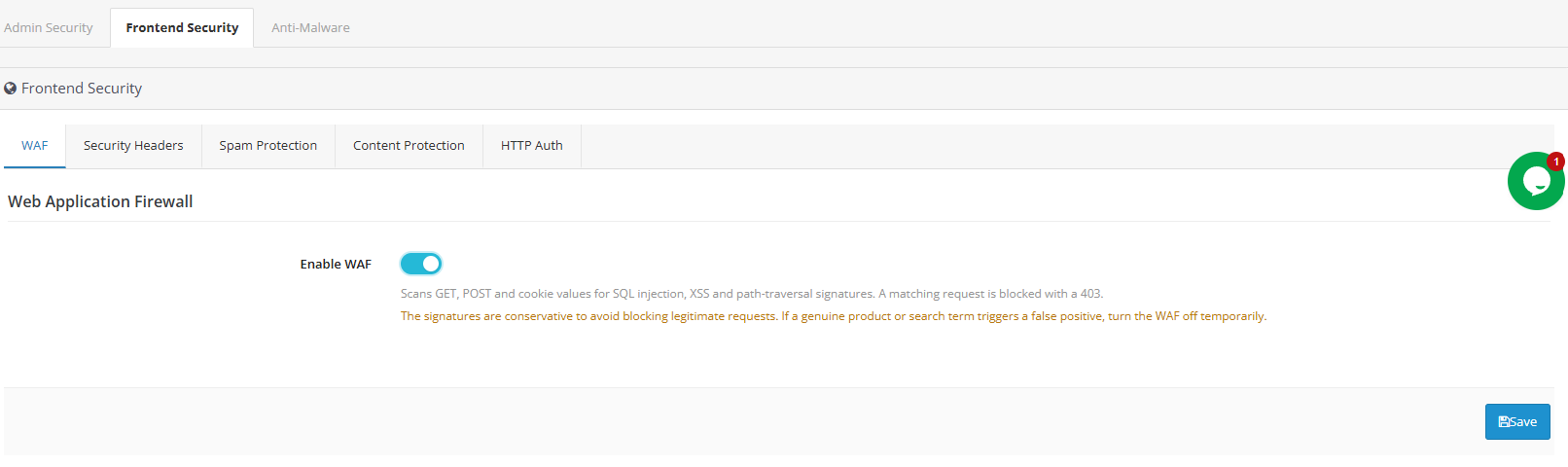
Functioning as a dedicated OpenCart firewall extension, this feature automatically blocks requests carrying known SQL injection, cross-site scripting, or path-traversal patterns before they reach the storefront’s own code. No configuration is required beyond enabling it.
Security Response Headers
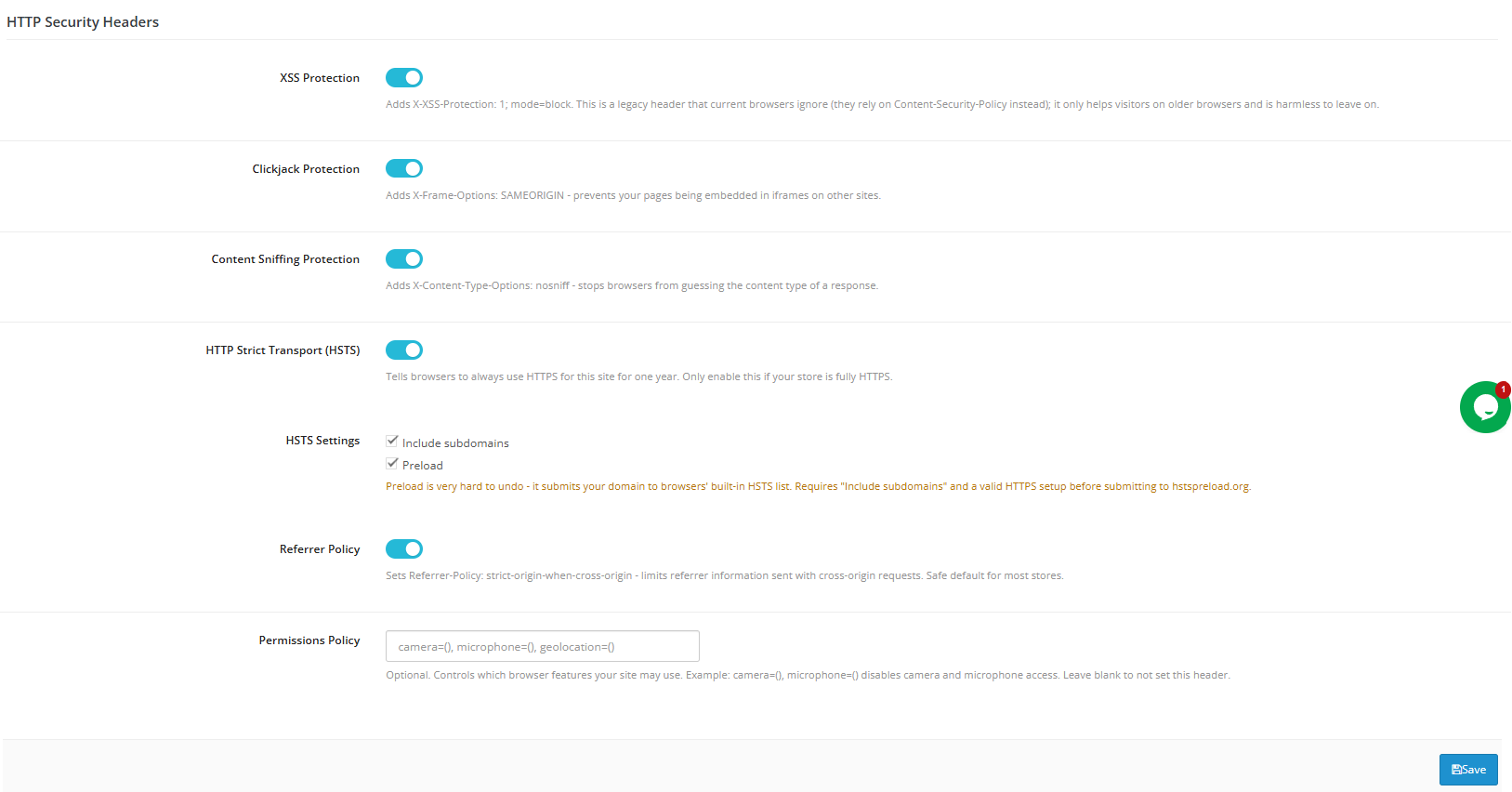
These settings add small, invisible instructions telling browsers how to handle your store safely. Most are safe to switch on and leave alone.
- XSS Protection: An older safeguard against a specific attack type. Modern browsers have better built-in protection, but leaving this on doesn’t hurt; think of it as a backup lock for older browsers.
- Clickjack Protection: Stops other sites from secretly displaying your store inside a hidden frame, a trick sometimes used to fool visitors into clicking things they didn’t mean to.
- Content Sniffing Protection: Tells browsers to trust the file type your store declares instead of guessing, closing a path attackers sometimes exploit.
- HTTPS-Only Browsing (HSTS): Tells browsers to always use the secure, encrypted version of your site, never the unsecured one.
- Include Subdomains / Preload: Extends that rule to any subdomains you use, and can optionally register your store on a global list browsers check automatically.
- Referrer Policy: Limits how much information browsers share about where a visitor came from when they click a link away from your store.
- Permissions Policy: Controls which device features (camera, microphone, etc.) your store’s pages can request in a visitor’s browser.
Form Spam Filtering
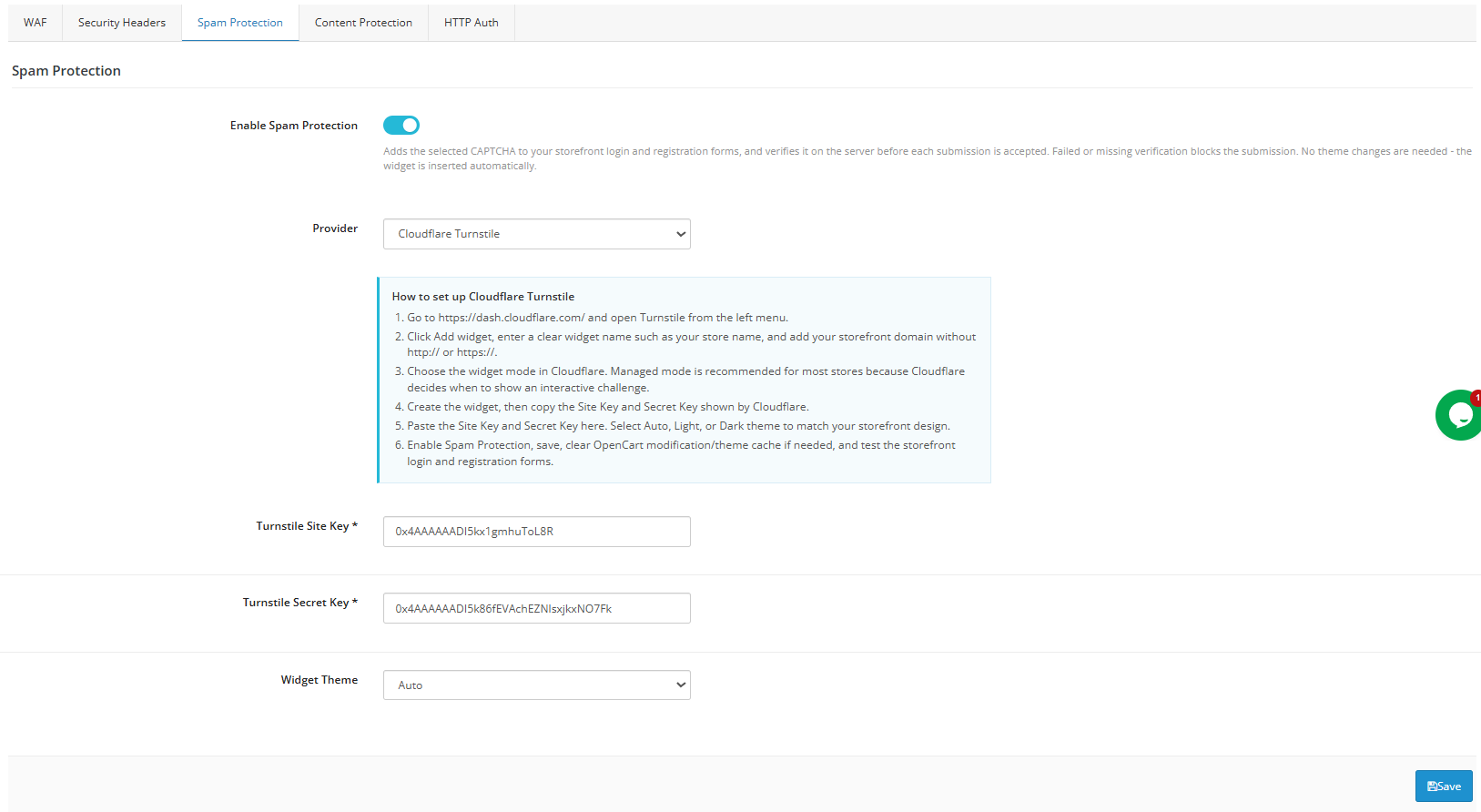
1.0 Captcha
As a built-in OpenCart spam protection extension and OpenCart captcha extension, this feature keeps bots and spammers from flooding your contact and registration forms with junk submissions. It works with providers including Cloudflare Turnstile, Google reCAPTCHA, and hCaptcha, each verifying that a real visitor, not a bot, is submitting your form.
- Enable Spam Protection: Adds a CAPTCHA check to your contact and registration forms, verified server-side so it can’t be bypassed.
- Provider: Choose Turnstile, reCAPTCHA, or hCaptcha; each works a little differently, but all block automated spam.
- Site Key / Secret Key: Codes from your chosen provider that connect your store securely.
- Widget Theme: Controls how the CAPTCHA box looks (Auto, Light, or Dark).
2. [New] Honeypot Field
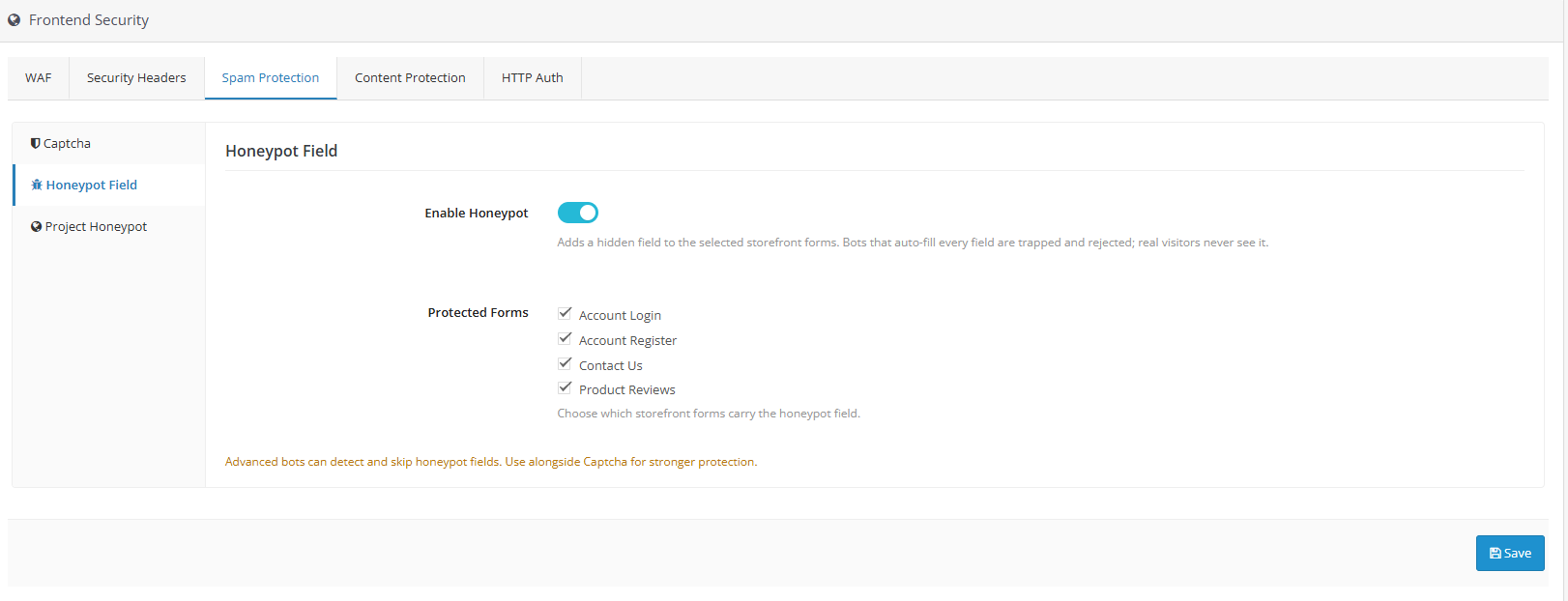
The Honeypot Field feature strengthens frontend security by embedding hidden fields within selected storefront forms. These fields stay completely invisible to human visitors, but any bot that automatically fills out every field on a form gives itself away instantly and gets blocked. It’s a low-overhead way to cut down on spam submissions, fraudulent account creation, and bot-driven login attempts, without adding any friction to the checkout or browsing experience for real shoppers.
Enable Honeypot: Switches Honeypot protection on for your store. Once active, a concealed field is silently inserted into each form you’ve selected below. Any submission where that hidden field gets filled in is flagged as bot activity and rejected before it reaches your database.
Protected Forms: Select which storefront forms Honeypot should guard. Available options include:
- Registration: Prevents bots from mass-creating fake customer accounts.
- Login: huts down scripted login attempts and credential-stuffing attacks.
- Contact: Keeps your inbox free of bot-generated spam inquiries.
- Newsletter: Blocks fake or automated subscription attempts. Note: Availability depends on your newsletter setup and active theme. If the form can’t be detected on a page, this protection is simply bypassed for that page.
- Product Reviews: Shields your review/comment forms from spam entries. Note: Requires the Product Review module to be present; if the form isn’t detected due to theme differences, protection is skipped automatically.
3.0 Project Honeypot
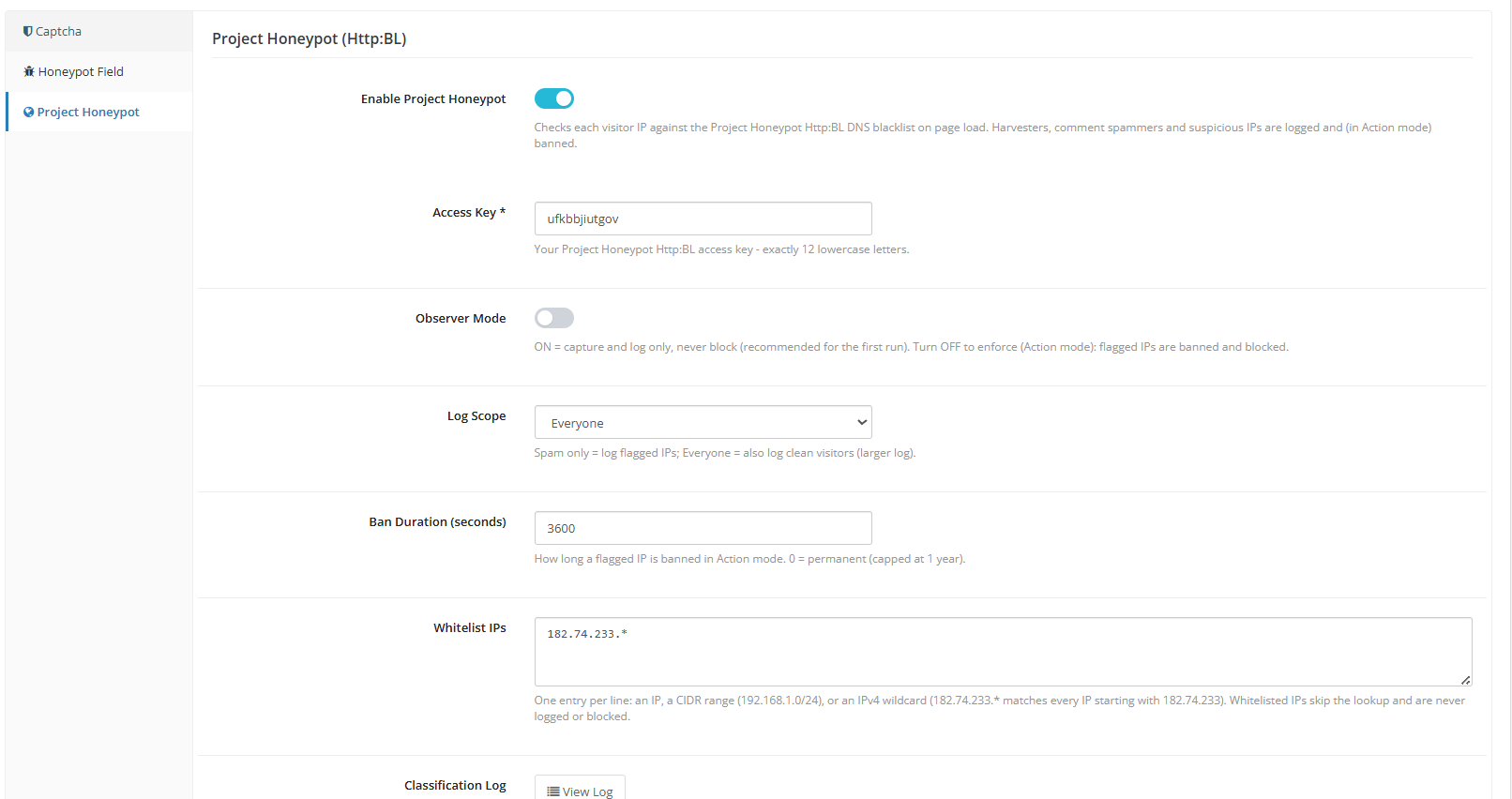
Enable Project Honeypot: The master switch for this entire module. Turning it on means every incoming visitor’s IP address gets checked against Http:BL — Project Honeypot’s DNS-based reputation database — the moment they land on a page. Unlike the form-based Honeypot field, which only triggers on submission, this check happens proactively, before the visitor interacts with anything.
Access Key: A 12-character lowercase code assigned by Project Honeypot that links your HTTP:BL queries back to your registered account. It isn’t a security credential in the traditional sense — it can’t be used to access anything, it functions more like an attribution token so the service knows which site is making the request.
Observer-Only Mode: Runs the IP lookups and logs every classification, but takes no blocking action. Use this mode first to collect data and understand your traffic patterns before enforcing anything.
Log Scope: Determines the volume of data written to the Classification Log.
- Flagged IPs only – A leaner option that records just the visitors Http:BL flags as risky.
- All visitors – Captures every classification, including “Safe” entries, giving you a fuller picture of your overall traffic reputation. Because this fills up faster, records are automatically cleared after 7 days.
Ban Duration (seconds): Applies once you switch to Action Mode. Determines how long a flagged IP remains blocked before it can attempt access again.
Whitelist IPs: Add specific IP addresses here to exempt them from blocking entirely, regardless of what Http:BL reports.
Classification Log: A record of each visitor’s IP, its assigned classification (Safe, Suspicious, Harvester, or Comment Spammer), and whether the action taken was observation only or an actual block. Reviewing this log during the Observer phase helps you catch any false positives before committing to Action Mode
Content Protection
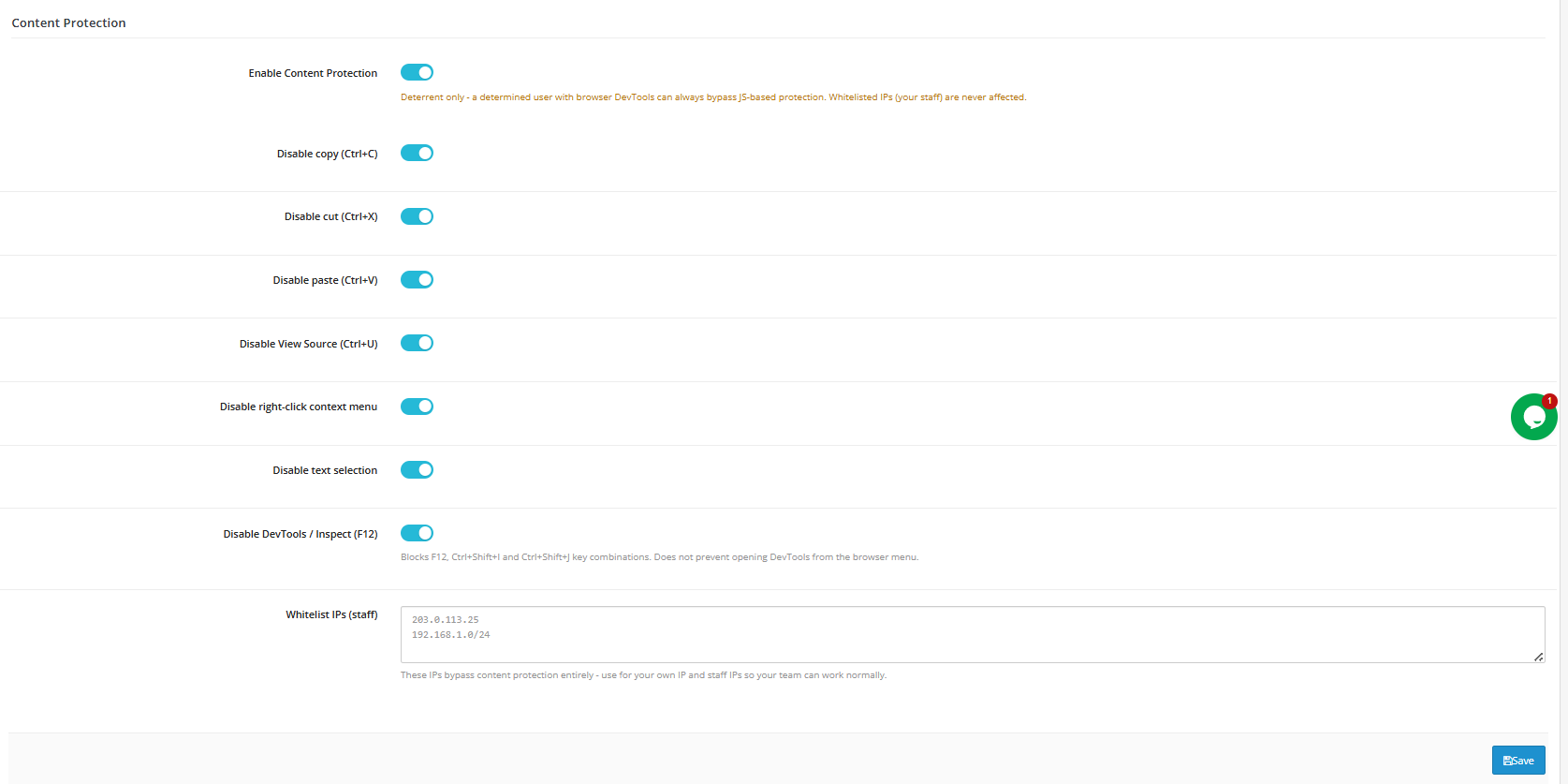
- Enable Content Protection: Master toggle. This works as a deterrent only; a determined visitor can still bypass it using their browser’s developer tools.
- Disable Copy/Cut/Paste: Blocks the keyboard shortcuts visitors would use to copy or paste page content.
- Disable View Source (Ctrl+U): Blocks the shortcut for viewing a page’s source code.
- Disable Right-Click Menu: Removes the context menu visitors could use to save images or copy content.
- Disable Text Selection: Prevents highlighting or selecting text on the page.
- Disable DevTools/Inspect (F12): Blocks the F12, Ctrl+Shift+I, and Ctrl+Shift+J shortcuts. Does not stop someone from opening DevTools through the browser’s own menu.
- Whitelist IPs (Staff): Addresses that bypass all content-protection restrictions.
Storefront-Wide Login Prompt
Another layer of this OpenCart password protection plugin, this feature gates the entire storefront behind a browser-level username/password prompt, separate from the admin-side prompt described in Section 6.
- Enable HTTP Auth for the Storefront: Adds a password prompt before any storefront page can be viewed.
- Username / Password: Storefront-specific credentials, stored encrypted.
- Whitelist IPs: Addresses that skip the storefront prompt entirely.
This is meant to keep a pre-launch or staging store private from search engines and casual visitors. The friction here is intentional, unlike the admin-side prompt. If the prompt keeps looping even with correct credentials on a PHP-FPM/FastCGI server, enable the compatibility setting under Admin Protection to resolve it; that setting applies to both the admin and storefront prompts.
3.0.0 File Integrity Monitoring
Settings
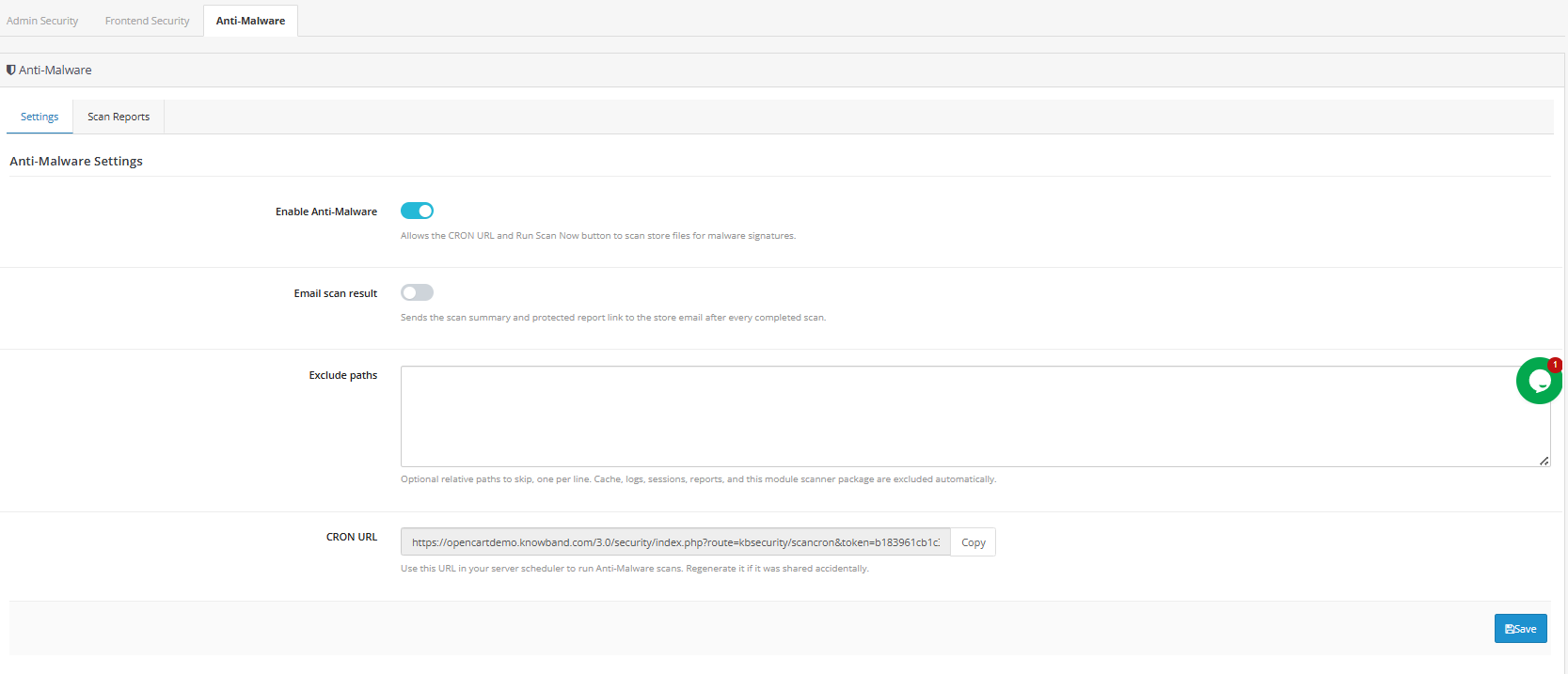
- Enable File Integrity Monitoring: Master toggle; when off, the scan endpoint returns immediately without scanning anything.
- Email Alert on New Threats: Sends an alert to the admin email whenever a scan finds something new or modified. Repeat alerts for known false positives are automatically suppressed.
- Exclude Paths: Relative paths, one per line, to skip during scanning, useful for suppressing known false positives such as vendor directories.
- Cron URL: A unique, token-protected URL that triggers a scan whenever your scheduler requests it.
To configure this correctly: enable the feature, turn on email alerts, and add the cron URL to your hosting control panel’s scheduled tasks (or your own crontab), typically scheduled for off-peak hours such as 2 a.m. Alerts fire only for genuinely new or changed threats. Once a file has been seen and either excluded or acknowledged, repeat alerts for that item are suppressed.
Scan History
- ID: Sequential identifier for each scan run.
- Date: When the scan was executed.
- Triggered By: Manual or scheduled (cron).
- Files Scanned: Total files checked in that run.
- Threats: Number of new or modified files flagged.
- Duration: How long the scan took.
- Status: Completion state.
- View Report: Opens the detailed findings for that scan.
This tab is purely historical and filterable by date range. No configuration is needed. Review your reports after the first few scheduled scans to learn what’s “normal” for your store, since most sites see a handful of flagged files tied to routine theme or extension updates. Once that baseline is established, genuinely unusual findings will stand out more clearly. Investigate any scan where the threat count jumps well past your baseline, even if individual files don’t look obviously malicious at first glance. That’s often exactly what an early-stage compromise looks like
Conclusion
OpenCart Advanced Security Manager brings together the protections most stores end up needing piecemeal – two-step verification, login throttling, a firewall, CAPTCHA, and file-integrity scanning – into one centrally configured screen. Set up thoughtfully, starting with login monitoring and the emergency recovery link before layering on more restrictive controls, it meaningfully cuts down the most common attack paths against OpenCart stores without adding friction for real customers or your own team.
The OpenCart Advanced Security Manager is also available on the OpenCart Marketplace, and store owners can access it the module by clicking here