
If you manage a growing OpenCart store, you already know how time-consuming manual product updates can be. The Knowband OpenCart Import Export Scheduler Pro is, therefore, purpose-built to eliminate that friction entirely. It handles bulk product and category transfers in CSV, XLSX, JSON, and XML formats all from within the OpenCart admin panel with no coding, no developer involvement, and no wasted hours.
Furthermore, what truly sets this OpenCart bulk product import/export extension apart from generic tools is its reusable profile system. Every import or export task is consequently saved as a named profile with its own file format, column mapping, FTP or SFTP destination, and optional cron schedule. As a result, store owners can move from one-off data dumps to fully automated, scheduled catalogue syncs in a matter of minutes.
Moreover, whether you are running a daily supplier feed via FTP, migrating products between two OpenCart stores, or pushing bulk price updates to a remote SFTP server, Knowband‘s OpenCart Catalogue import export extension covers every scenario out of the box. No custom code is required. The OpenCart catalogue Migration via Import Export Extension is now available on the OpenCart Marketplace
1.1 Key Capabilities of Opencart Import Export Extension
- Four file formats are supported for OpenCart bulk product import/export: CSV, XLSX, JSON, XML
- Reusable named profiles with saved mappings, format settings, and FTP/SFTP configuration
- FTP, FTPS, and SFTP transfer with live connection testing before saving
- Fully automated, unattended OpenCart cron import/export on any schedule
- Column auto-matching with required-field validation that blocks incomplete imports
- Full import export support for OpenCart product combinations and variants
- Multilingual field handling export and import translated fields across all active languages
- Transfer Logs with row-level error detail and re-download links for every run
- Automatic file cleanup on a configurable retention schedule
- Compatible with OpenCart 3. x.x | PHP 7.2+ | MySQL 5.6+
1.2 Who Is This Extension For?
This OpenCart CSV import export extension is specifically designed for:
- Store owners managing catalogs of 100 to 50,000 SKUs who need repeatable bulk updates without manual effort
- Agencies handling multiple OpenCart stores and requiring smooth catalogue migration between instances
- International stores managing multilingual product data across several active languages
- Businesses syncing supplier feeds on a daily or hourly schedule via FTP or SFTP
- Administrators who want a reliable, log-backed history for every OpenCart bulk import/export run
2. Installation
Before proceeding, verify that your server meets the minimum requirements for Knowband‘s OpenCart scheduled import export extension: OpenCart 3.x.x, PHP 7.2 or higher, and MySQL 5.6 or higher.
Step 1: Upload via FTP
To begin with, extract the ZIP archive downloaded from the Knowband store. Connect to your server via an FTP client and copy all extracted files from the upload folder into the root directory of your OpenCart installation.
Step 2: Install in the Admin Panel
Next, log in to your OpenCart admin panel. Navigate to Extensions > Extensions, locate Knowband Import Export Plugin in the list, and click Install. The Plugin will thereafter be registered with your OpenCart instance.
Step 3: Configure
Finally, click Edit on the same row to open the extension configuration page. You will land on the General Settings tab, where all global preferences including cron URLs, file size limits, and cleanup schedules are managed.
3. Admin Panel Overview
Once installation is complete, the Knowband OpenCart Import Export Scheduler Pro adds four clearly organised tabs inside its configuration page. Understanding each tab’s purpose is, consequently, the fastest way to get productive with OpenCart bulk catalog management.
4. General Settings
The General Settings tab is the control centre for all global behaviours of the OpenCart import export extension. It is divided into four sub-sections. Configuring these settings correctly upfront will, in turn, ensure that all subsequent import and export operations run smoothly.
4.1 Preferences
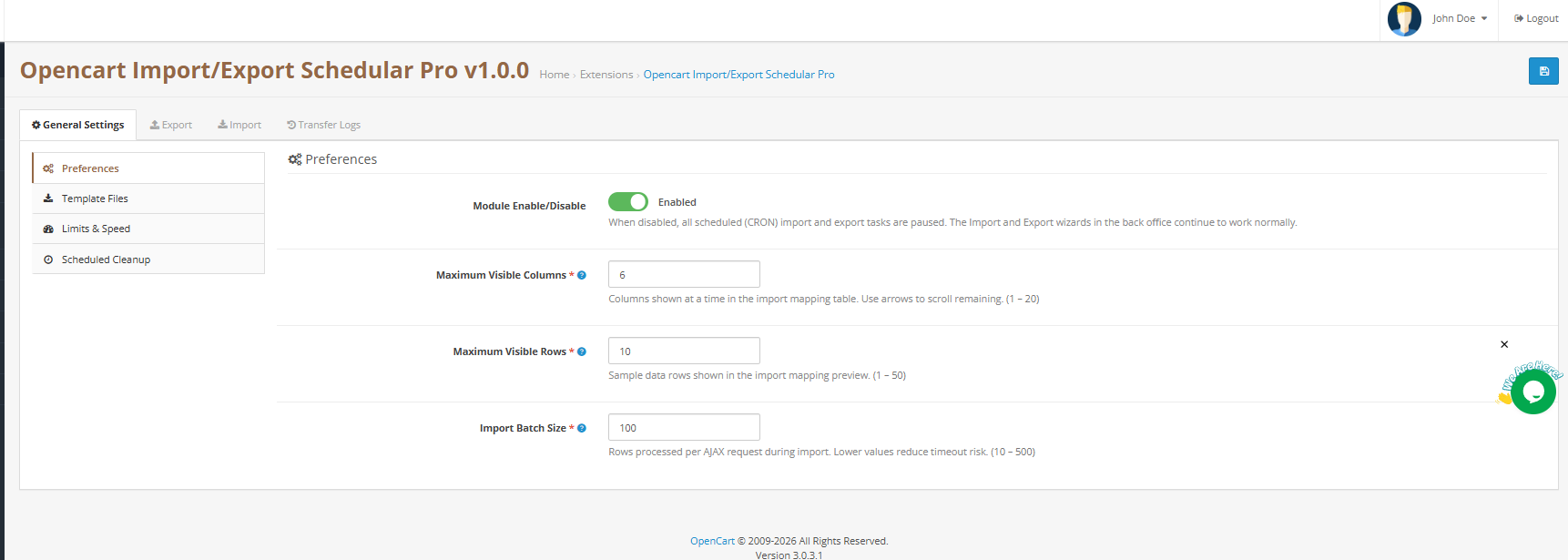
Extension Enable / Disable turns the entire extension on or off. When disabled, all scheduled cron import and export tasks are paused immediately.
Maximum Visible Columns sets how many columns display at once in the OpenCart import mapping table. Range: 1–20. Default: 6. Use the pagination arrows to navigate remaining columns.
Maximum Visible Rows sets how many sample data rows appear in the mapping preview. For visual verification only does not restrict the actual import row count. Range: 1–50. Default: 10.
Import Batch Size controls how many rows are processed per AJAX request during OpenCart bulk product import. Lower values reduce timeout risk on shared hosting. Range: 10–500. Default: 100. On VPS or dedicated servers, increase to 300 or higher for faster large imports.
Click Save Settings to apply.
4.2 Template Files
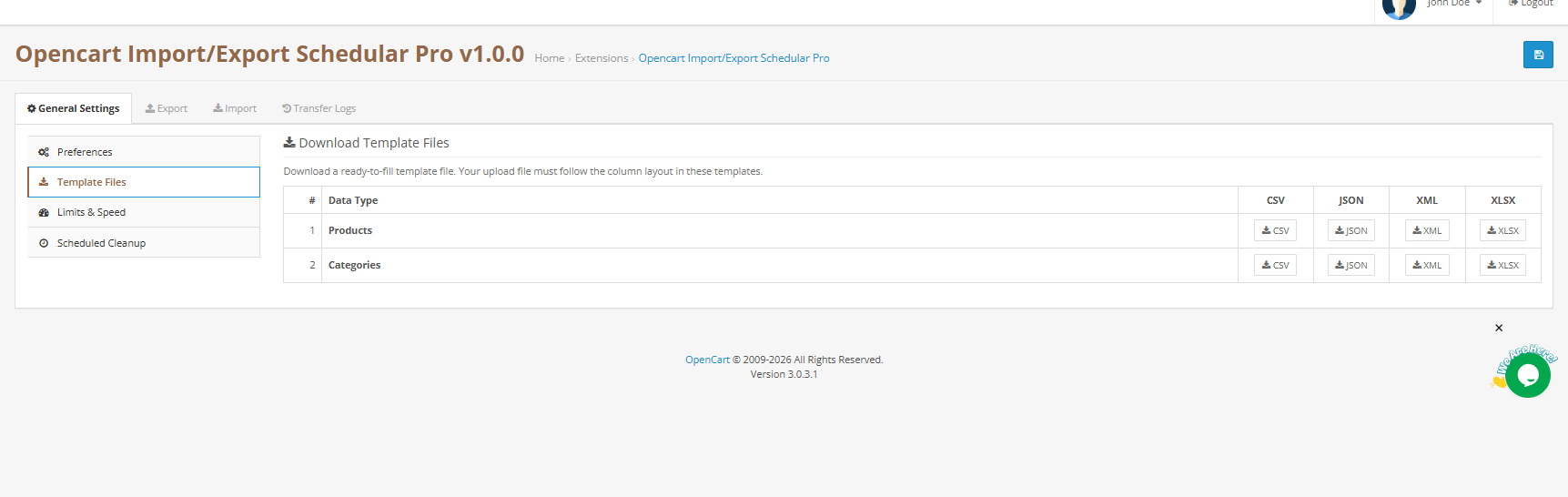
This section provides ready-to-fill sample files for every supported entity and format combination an essential starting point for anyone setting up an OpenCart CSV import or XLSX-based bulk upload for the first time. Two entities are available: Products and Categories. Each has four format buttons: CSV, JSON, XML, and XLSX.
Simply click the relevant button to download the template. Each template includes every column the importer recognises, with safe placeholder data. Fill it with real product data and import it back.
Important: Your uploaded file must follow the column layout shown in the templates. Deviating from this layout will cause column auto-matching to fail and require manual remapping.
4.3 Limits and Speed
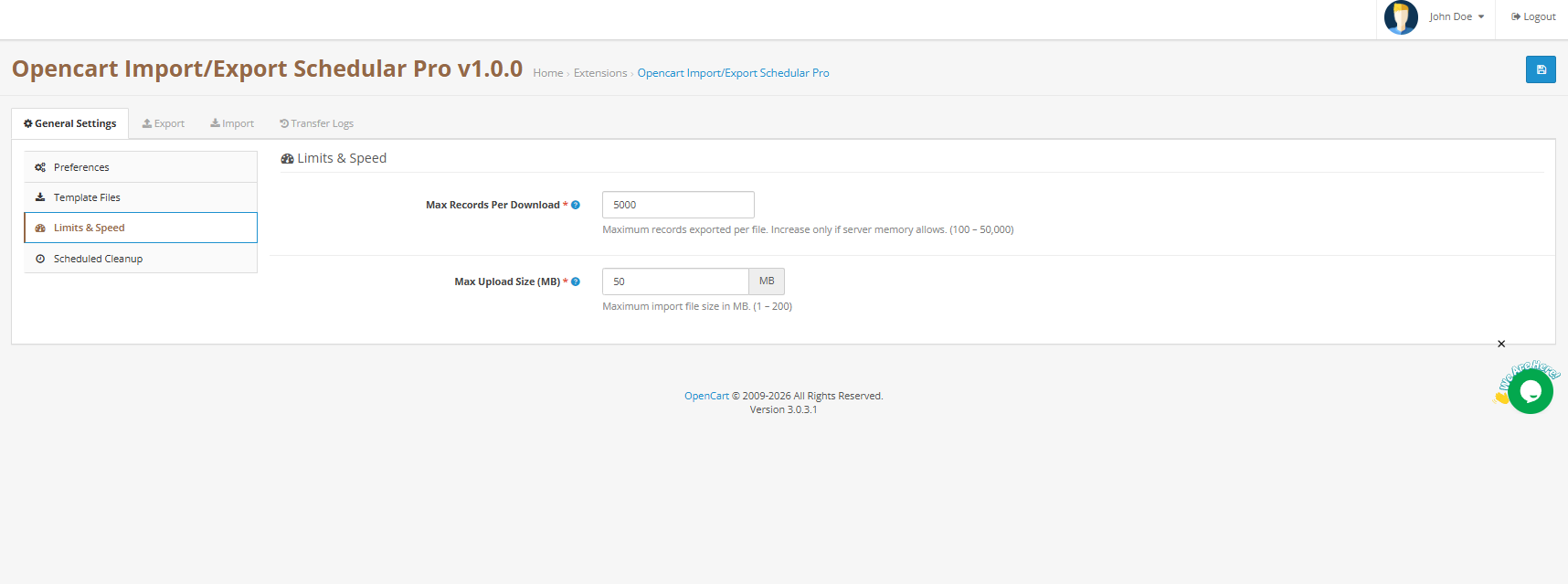
Max Records Per Download: Maximum number of records exported per file. Increase only if your server memory supports it. Range: 100–50,000. Default: 5,000.
Max Upload Size (MB) Maximum import file size the plugin accepts. Works alongside PHP’s server-level upload limit; whichever is lower takes effect. Range: 1–200 MB. Default: 50 MB.
Click Save Settings to apply.
4.4 Scheduled Cleanup and Cron URLs
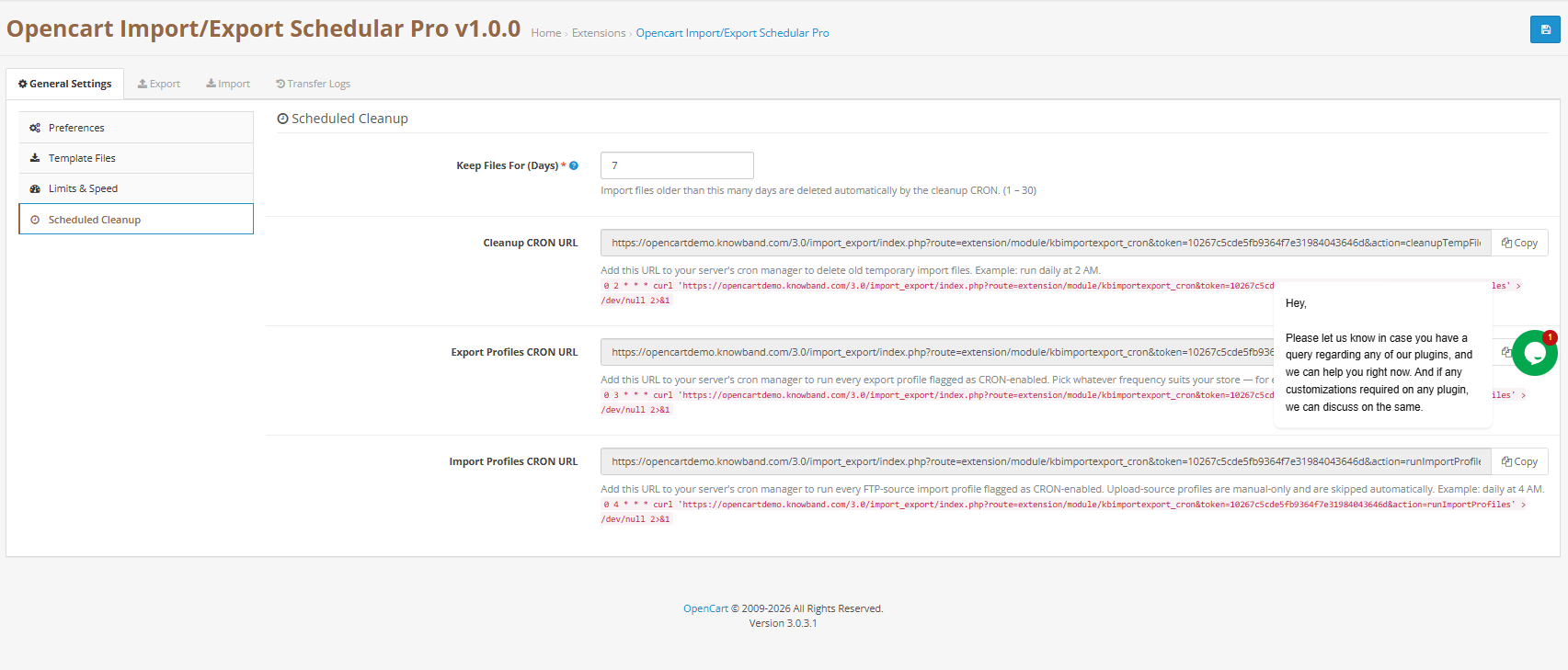
This is where you configure the three cron job URLs that power the automated side of Knowband‘s OpenCart scheduled import/export system. Each URL has a dedicated Copy button; paste it directly into your server crontab or OpenCart’s built-in scheduled tasks.
Keep Files For (Days) Import and export files older than this number of days are deleted automatically by the cleanup cron. Range: 1–30 days. Default: 7 days.
Cleanup Cron URL Recommended: daily at 2 AM. Deletes old temporary files automatically.
Export Profiles Cron URL: Recommended: daily at 3 AM. Runs every export profile flagged as cron-enabled and stores the generated file in Transfer Logs.
Import Profiles Cron URL Recommended: daily at 4 AM. Fetches files via FTP/SFTP and runs every FTP-source import profile flagged as cron-enabled. Upload-source profiles are manual-only and are skipped automatically.
Click Save Settings to apply.
5. Export Profiles: Complete Walkthrough
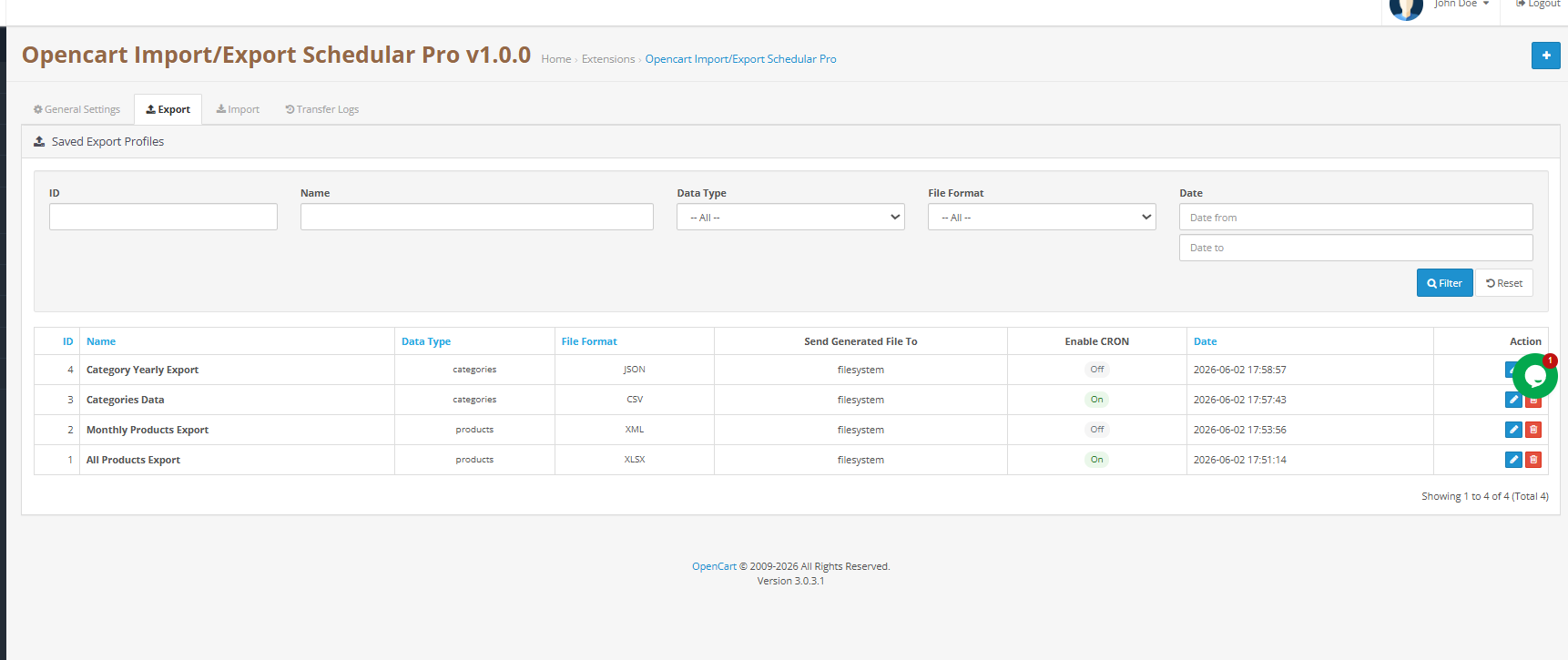
The Export tab lists all saved export profiles. Knowband‘s profile-based approach means you set up the OpenCart bulk export once and reuse it indefinitely either manually with one click or automatically on a cron schedule. Each profile displays its ID, name, entity type, format, cron status, and date added.
Click Add Export Profile to create a new one. The wizard runs through three steps: Transfer Settings, Choose Fields, and Generate File.
5.1 Step 1 Transfer Settings
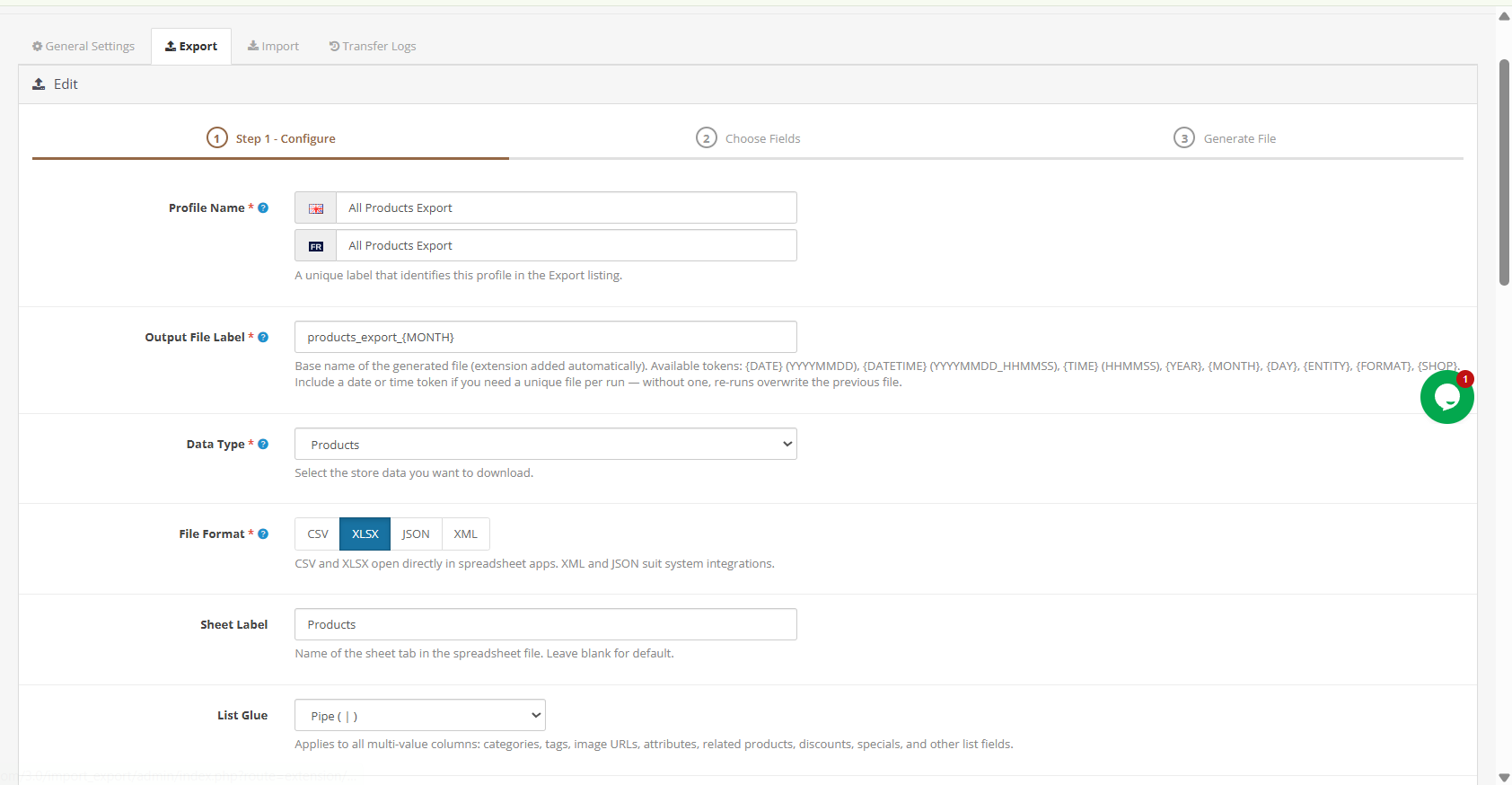
Profile Name: A unique label for this profile in the Export listing. Example: Weekly Product Feed.
Output File Label: Base name for the generated file. The plugin is added automatically. Use letters, digits, hyphens, and underscores only. Example: products-daily.
Data Type: Select Products or Categories.
File Format: Select CSV, XLSX, XML, or JSON.
Language(s) Select one or more store languages. Translated fields such as name and description are exported for each selected language. Select All Languages to include every active language, a key feature for multilingual OpenCart product import export workflows.
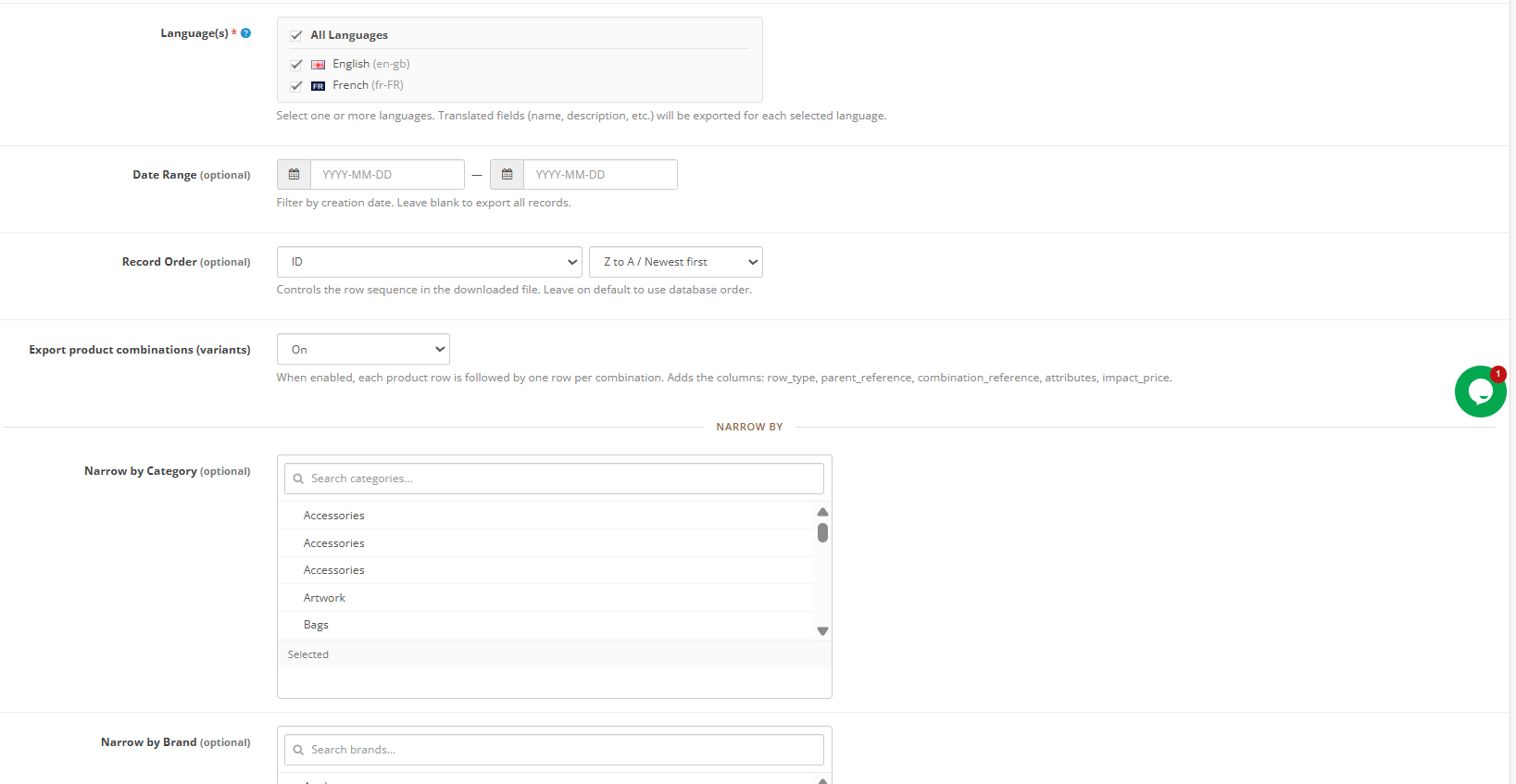
Date Range (optional) Filter records by creation date. Leave blank to export all records.
Record Order (optional) Controls row sequence in the output file. Leave on default for standard database order.
Export Product Combinations (Options/Variants). When enabled, each product row is followed by one row per combination. Adds the columns row_type, parent_reference, combination_reference, attributes, and impact_price. Enable this for a full OpenCart catalog export that includes all product variants.
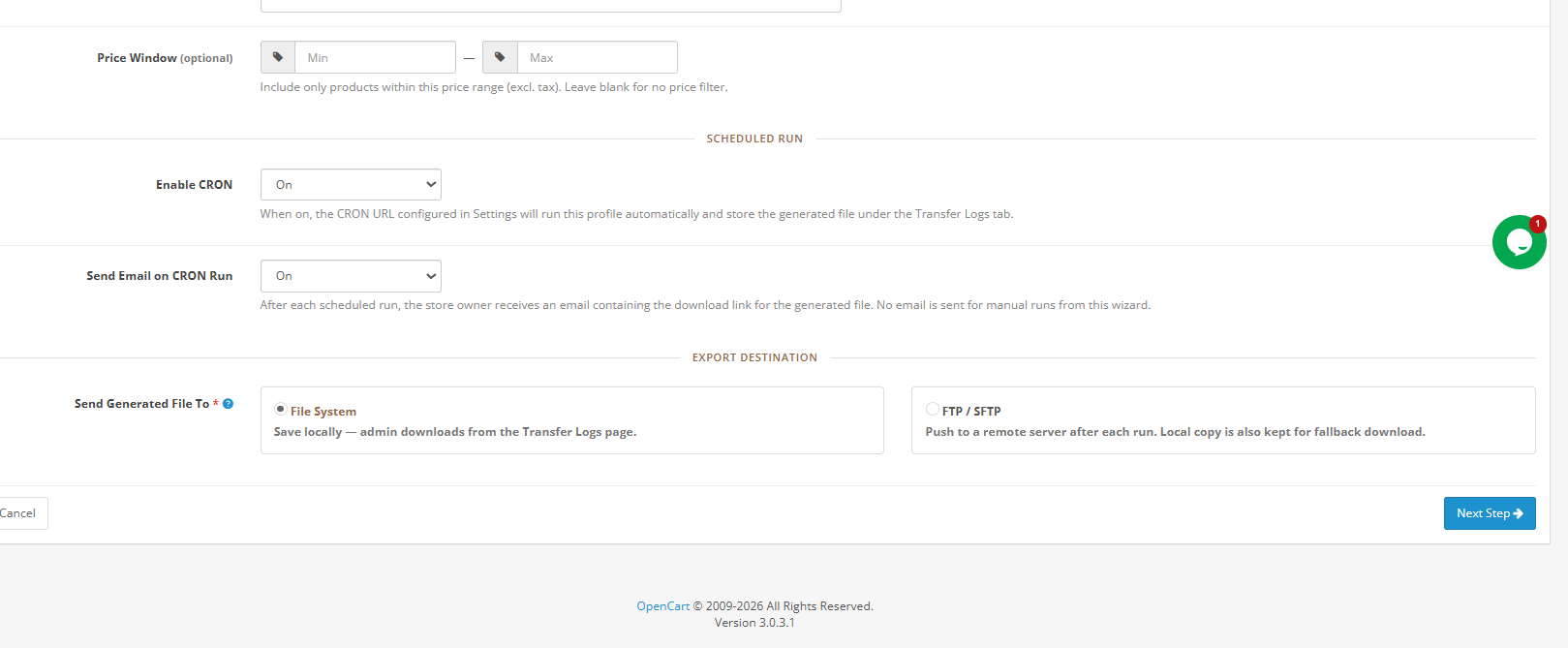
Scheduled Run Enable Cron When on, the Export Profiles Cron URL runs this profile automatically and stores the generated file in Transfer Logs after each run.
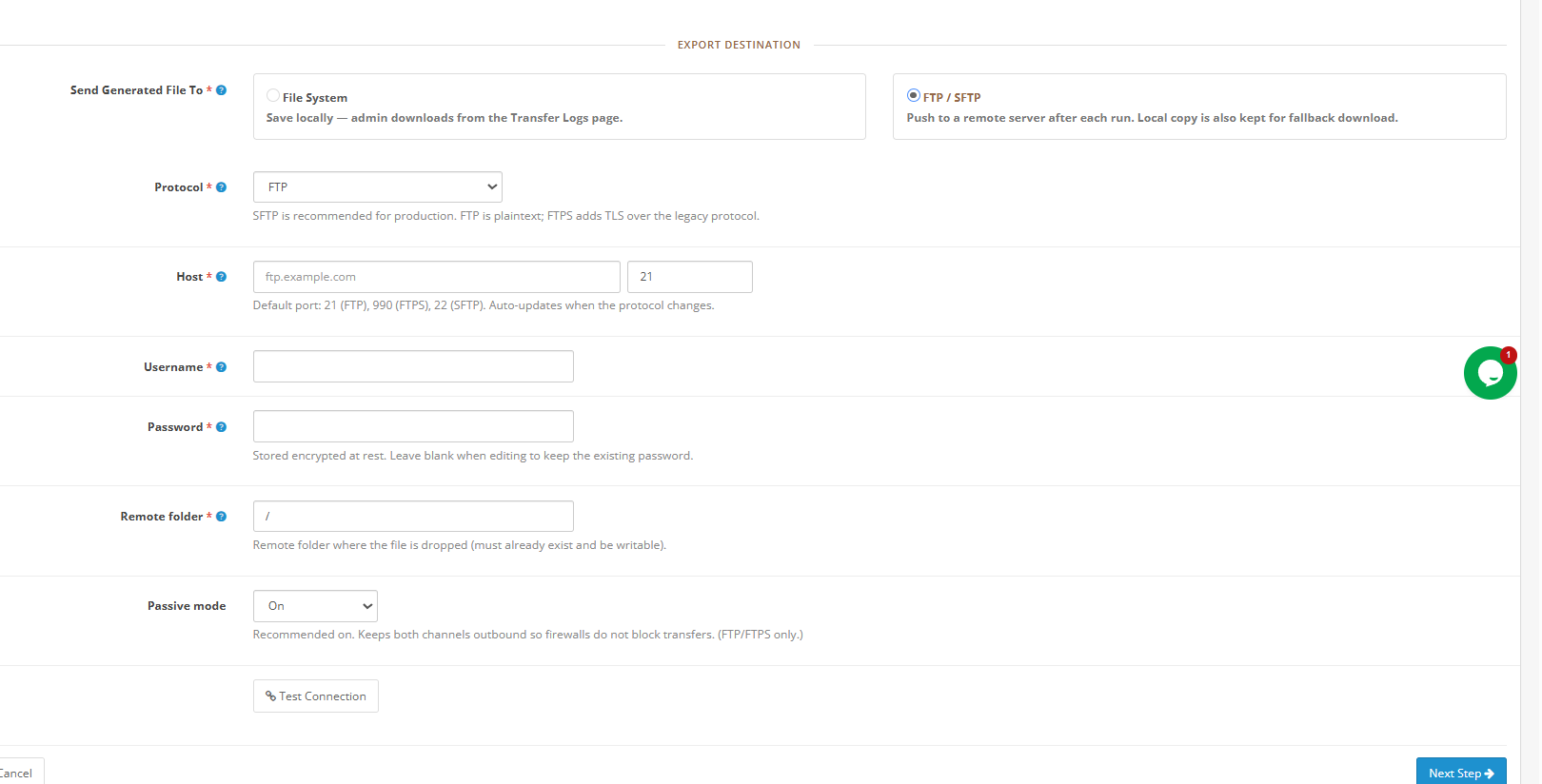
Export Destination
The file system saves the file locally. Administrators download it directly from Transfer Logs.
FTP / SFTP pushes the file to a configured remote server after each run. A local copy is also retained in Transfer Logs as a fallback.
When FTP / SFTP is selected, the following additional fields appear, Username, Password, Hostname and Remote Folder which is basically a path name of the folder on which you will export.
Output Style (CSV Delimiter): Universal comma, Windows/Excel semicolon, or Tab-separated.
List Glue Separator for multi-value fields such as Tags and Category Names. Options: Pipe, Slash, or Comma.
Narrow by Category / Manufacturer / Supplier. Optional filters to scope the export to a specific product subset.
Price Window: Include only products within a specified minimum–maximum price range. Leave blank for no filter.
Click Next Step to proceed.
5.2 Step 2 Choose Fields
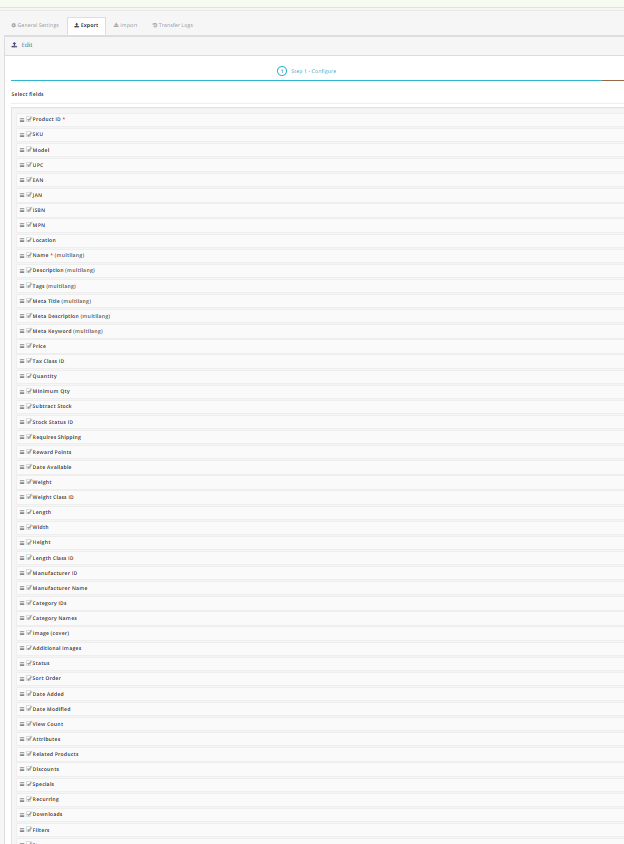
Every available product or category column appears as a selectable checklist. Required fields, marked with an asterisk, cannot be deselected. Additionally, you can reorder columns by dragging rows to control the exact sequence in the output file.
Three quick-action buttons are available:
- Select All includes every available column in the export.
- Deselect All Clears all optional selections, leaving only required fields active.
- Reset to Defaults restores the recommended default column set.
Available product fields include: ID, Model (SKU), Name, Status, Product Type, Condition, Manufacturer, Supplier, Tags, Date Added, Short Description, Description, Weight, Dimensions, EAN, UPC, MPN, Meta Title, Meta Description, SEO URL, Cover Image URL, All Image URLs, Category IDs, Category Names, Price, Cost Price, Special Price, Minimum Quantity, Stock Quantity, Stock Status, and Out of Stock Behaviour making it one of the most comprehensive OpenCart bulk product export tools available.
Click Preview Data to see the first five rows based on your current selection. Click Save Profile to save without generating, or Next Step to proceed.
5.3 Step 3: Generate File in Opencart Catalogue Import Export Plugin
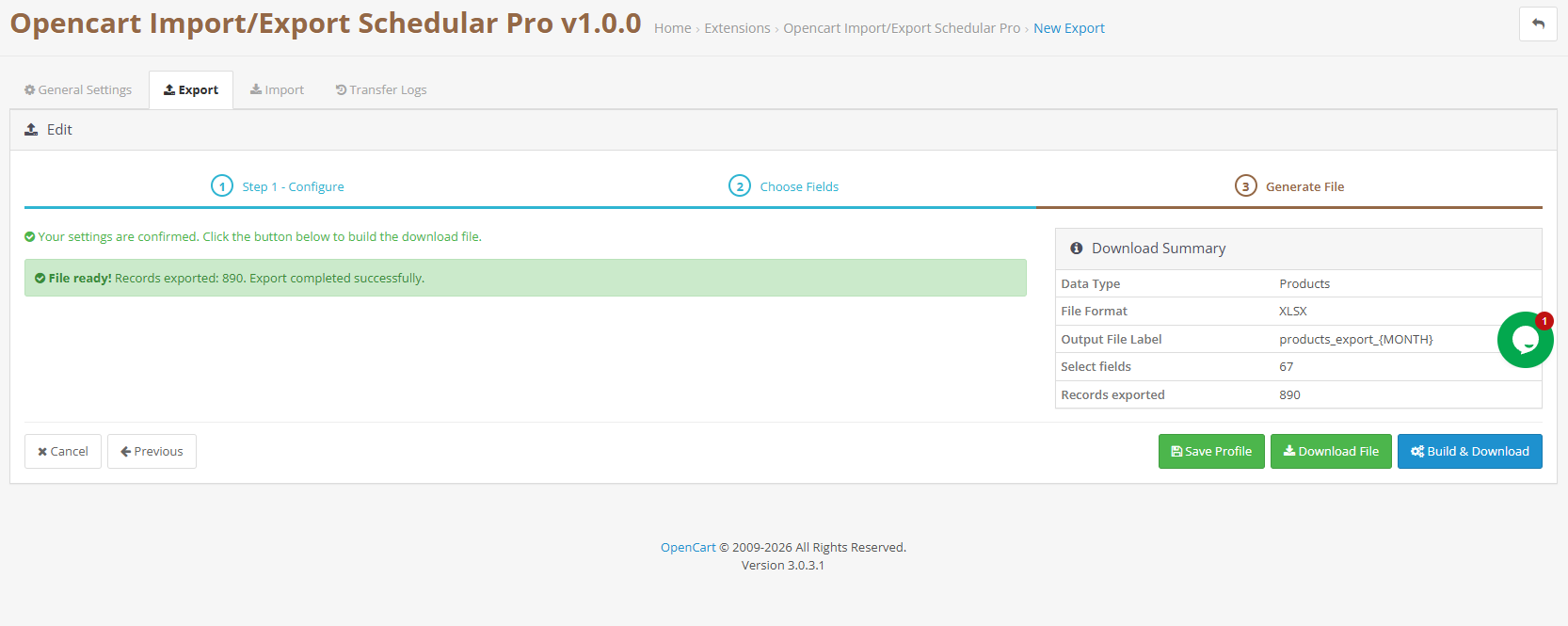
The final step presents a Download Summary confirming Data Type, File Format, File Label, and Fields Selected. Click Build and Download to generate the file immediately. The file downloads to your browser or is pushed to the configured FTP/SFTP destination, and the run is recorded automatically in Transfer Logs.
Note: Export files remain available for re-download in Transfer Logs until the scheduled cleanup cron removes them after the configured retention period.
6. Import Profiles Complete Walkthrough
The Import tab, similarly to the Export tab, lists all saved import profiles. Each profile shows its ID, name, entity type, format, source type (Upload or FTP), cron status, and date added. Click Add Import Profile to begin the three-step wizard: Source Settings, Map Columns, and Run Import.
6.1 Step 1 Source Settings
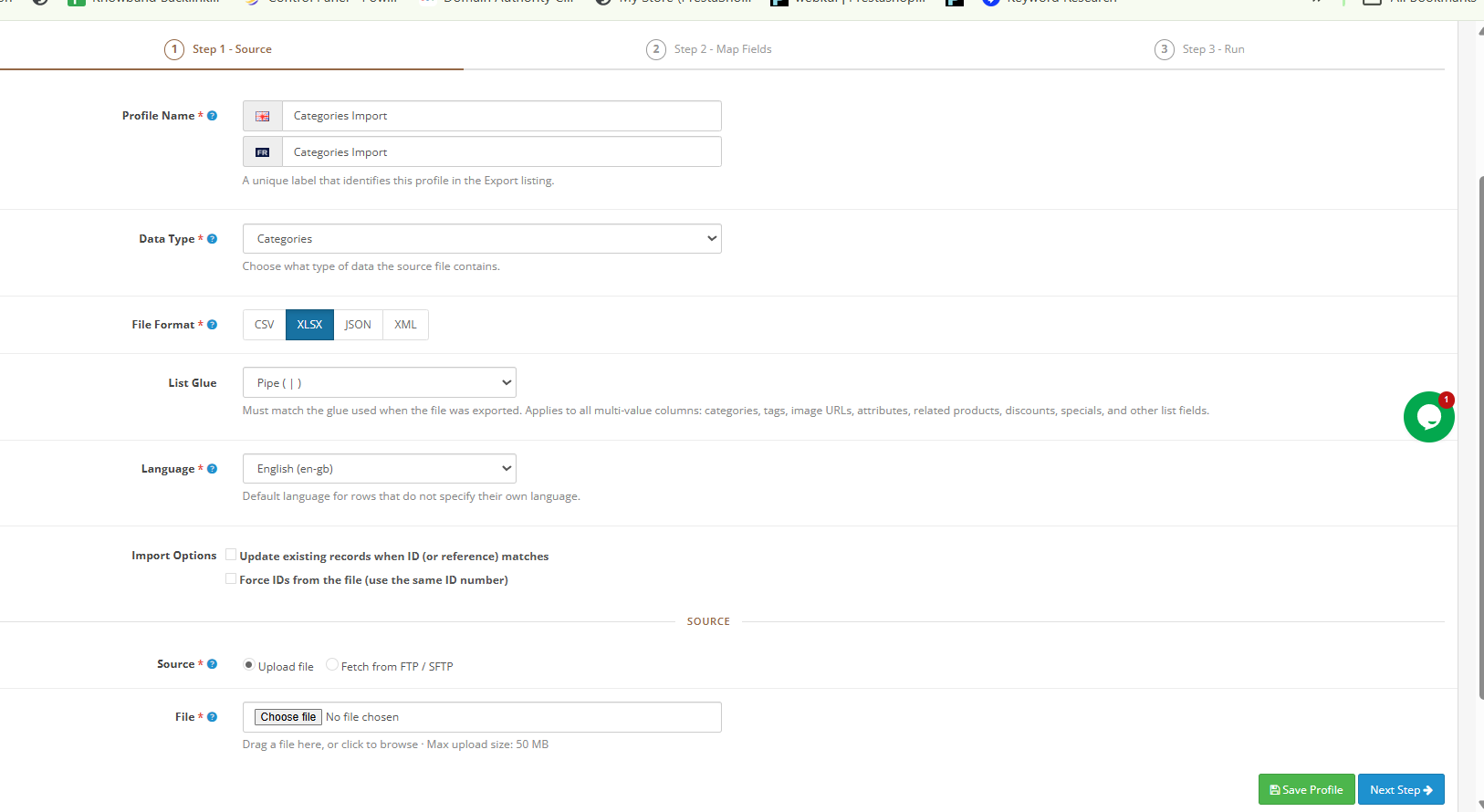
Profile Name: A unique label for this profile. Example: Daily Supplier Feed.
Data Type: Products or Categories.
File Format CSV, XLSX, JSON, or XML must match the actual file format.
Output Style: CSV delimiter matching the file being imported.
List Glue must match the glue used during the corresponding export. This setting directly affects multi-value fields like Tags, Categories, and Image URLs.
Language: Default language for rows that do not specify their own language within the file.
Import Options
Update existing records when ID or model matches. Standard setting for all regular OpenCart bulk product import runs. Updates an existing product when a matching ID or SKU is found instead of creating a duplicate.
Force IDs from the file. Use only when migrating between stores where preserving the exact original product ID is required. Not recommended for routine imports.
Source Selection
Upload File for one-time manual imports. Maximum file size: 50 MB. Accepted formats: CSV, XLSX, JSON, XML.
FTP / SFTP For pulling files from a remote server. Required for cron-driven automated OpenCart imports via scheduled FTP product sync.
When FTP or SFTP is selected as the source for an import profile in the Knowband OpenCart Import Export Scheduler Pro, a set of additional configuration fields appears on the screen. Each field plays a specific role in establishing the remote connection and controlling how the automated OpenCart scheduled import behaves.
The Transfer Protocol field is where you choose the connection method between FTP, FTPS, or SFTP. FTPS is generally recommended for production environments because it adds a layer of encryption over the standard FTP connection. The Server field takes the address of your remote FTP server, for example ftp.example.com. Right alongside it, the Port field auto-populates based on whichever protocol you select, which is 21 for FTP and 22 for SFTP, though you can override this if your server uses a non-standard port.
The Username and Password fields hold the login credentials for the remote server. Both are stored encrypted at rest, meaning they are never saved in plain text anywhere in the system. Once you have filled in the credentials, the Remote File Path field requires the absolute path to the source file on the remote server.
This path must be exact and the file must exist at that location every single time the OpenCart cron import export runs. A typical example would be something like /home/feed/products.xml.
Passive Mode is a toggle that is recommended for FTP and FTPS connections, as it helps avoid connection issues caused by firewalls blocking the data channel. When SFTP is selected as the protocol, this setting is simply ignored.
The Cron toggle, when enabled, instructs the Import Profiles Cron URL in General Settings to automatically fetch the file from the remote server and run the OpenCart bulk product import on the configured schedule, without any manual intervention.
Click Save Profile, then Next Step.
6.2 Step 2: Map Columns
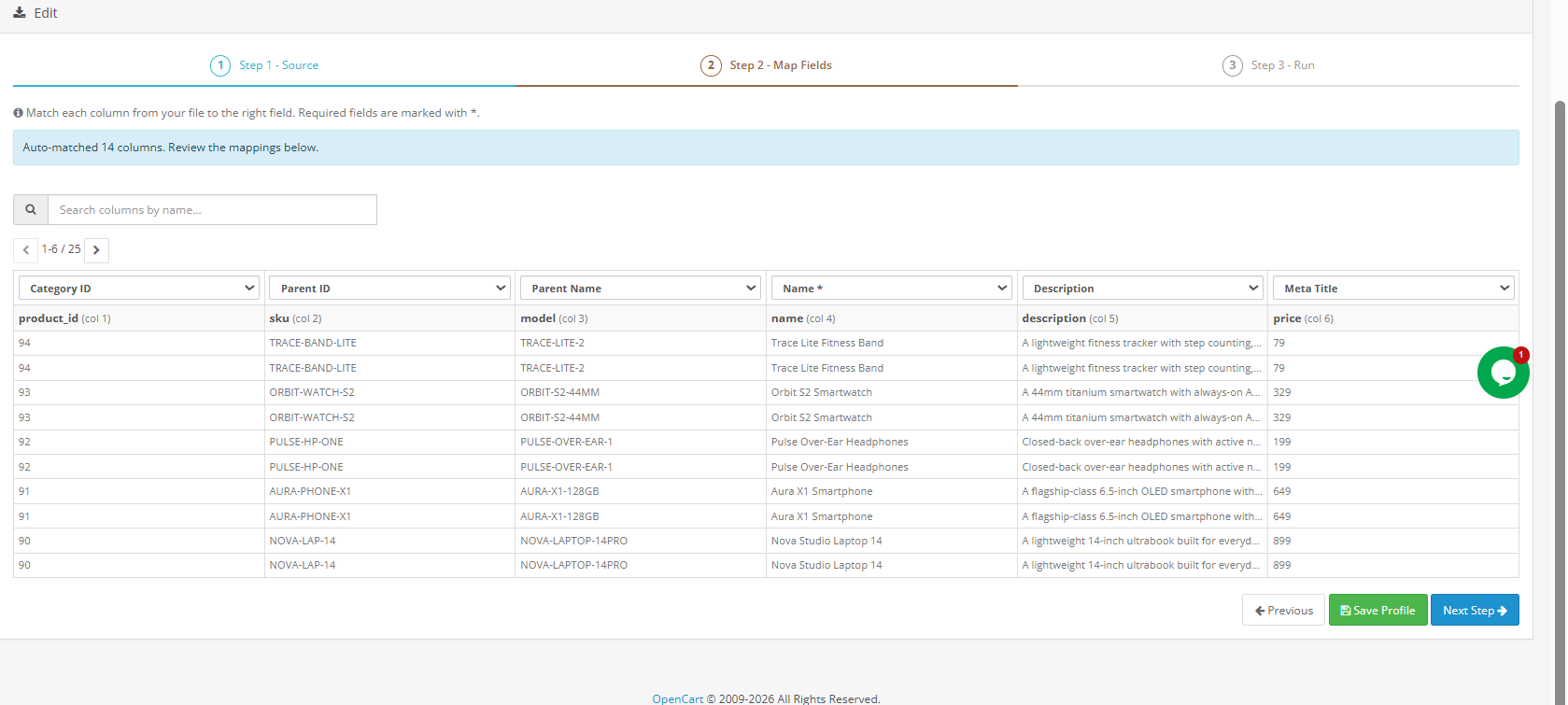
The column mapping screen loads actual rows from your uploaded or fetched file. Each column from your file is matched to the correct OpenCart field. Knowband‘s auto-matching engine detects column names and maps them without manual intervention wherever possible.
A confirmation at the top of the screen shows how many columns were successfully matched for example: 47 of 47 columns auto-matched. Nevertheless, you should still review the mapping below to verify accuracy, particularly for custom or non-standard column names.
Each file column appears as a dropdown selector at the top of its respective data column. The rows below display real data values from the file, making it straightforward to verify that each column is mapped correctly. Use the search box to find a specific column, and navigate through remaining columns with the pagination arrows.
Important: If a required field is left unmapped, the extension blocks the import and displays a warning before allowing you to proceed. This OpenCart import mapping validation step ensures data integrity on every run.
Click Save Profile to save the mapping. Click Next Step to proceed.
6.3 Step 3: Run Import
Once the mapping is confirmed, two options are presented:
Save Profile saves the import profile for future use without running the import immediately.
Start Import runs the import in batches as configured in General Settings. When complete, Transfer Logs records the full result: total records processed, successful records, and any failures with row-level error detail.
For large catalogs, the batch processing approach used by Knowband‘s extension means the OpenCart bulk product import continues reliably even on shared hosting because each batch is a separate AJAX request; server timeouts cannot interrupt the overall process.
7. Transfer Logs
The Transfer Logs tab provides a comprehensive history of every import and export operation run through the extension. This is, consequently, the first place to check whenever an OpenCart bulk import export run produces unexpected results or an export does not appear in the expected destination.
Using Transfer Logs for Troubleshooting
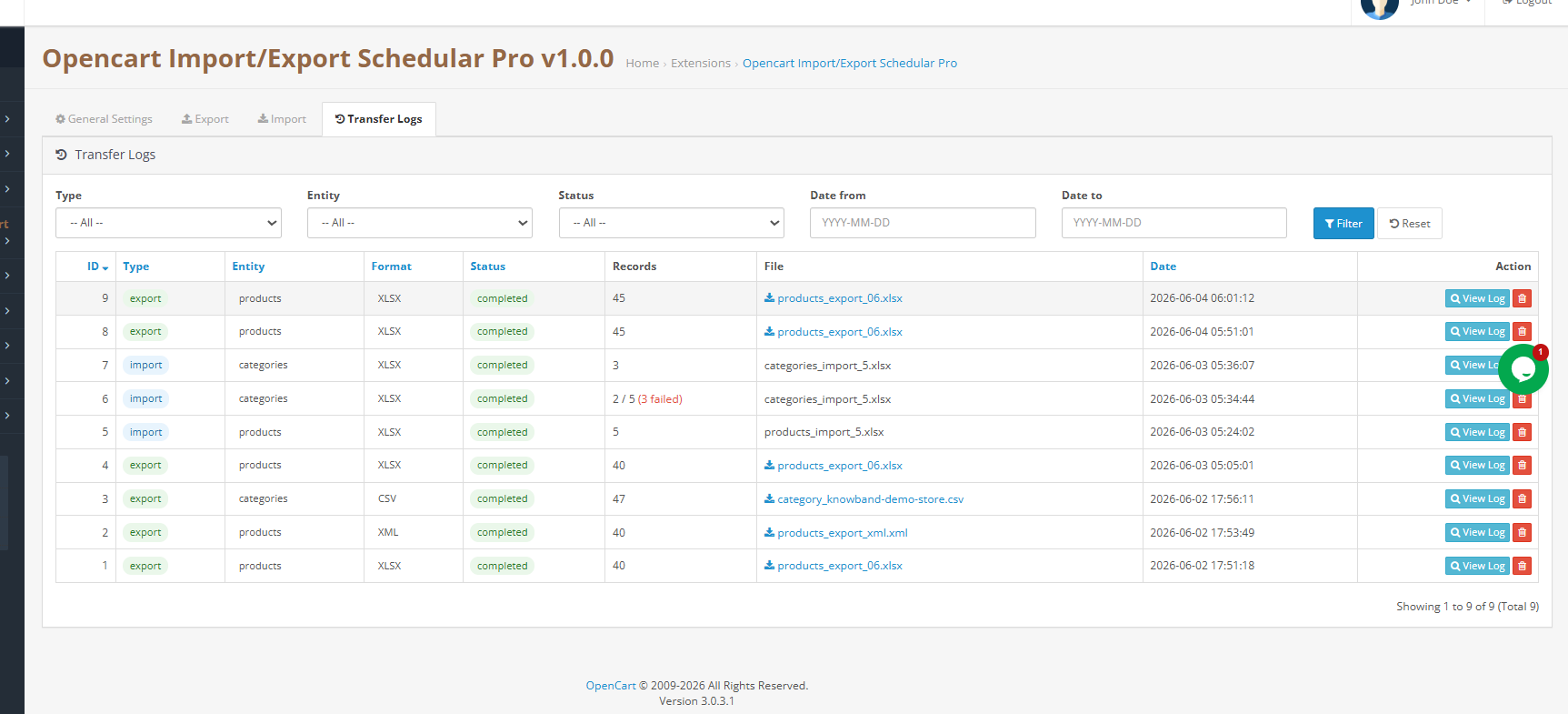
Click the Log button on any row to open row-level error detail for failed records. This detail view shows precisely which rows failed and the specific error reason for each. As a result, you do not need to re-import the entire file; simply fix only the affected rows in your source file and re-import just those rows.
Export files remain available for re-download in the Logs tab until the scheduled cleanup cron removes them after the configured retention period (default: 7 days). This gives you ample time to verify, redistribute, or archive any generated OpenCart bulk export.
8. Frequently Asked Questions
Question1: What is the Knowband OpenCart Import Export Scheduler Pro?
Knowband‘s OpenCart Import Export Scheduler Pro is a professional-grade bulk data management extension for OpenCart 3.x.x. It handles product and category imports and exports in CSV, XLSX, JSON, and XML, and furthermore includes reusable profiles, column mapping with validation, FTP/SFTP file transfer, cron scheduling, email notifications, and full transfer logs all from the OpenCart admin panel without any developer involvement.
Question2: How do I bulk upload products in OpenCart using a CSV file? Go to the Import tab and click Add Import Profile. Set the data type to Products, select CSV as the format, upload your file under Pick Source, and click Next Step. The extension auto-matches columns and displays the first rows of the actual file for verification. Confirm the mapping and click Start Import. Sample CSV templates are available from General Settings > Template Files to ensure your file follows the correct column layout.
Question3: Can I import and export OpenCart product combinations and variants? Yes. Enable Export Product Combinations (Options/Variants) in the export profile settings. Each product row is consequently followed by one row per combination, with attributes presented in a readable format. On re-import, any missing attribute groups and values are created automatically in the destination store.
Question4: How do I automate OpenCart product imports using cron jobs? Create an import profile with FTP or SFTP as the source and enable Cron in the scheduling section. Next, copy the Import Profiles Cron URL from General Settings > Scheduled Cleanup. Add it to your server crontab or OpenCart’s scheduled tasks with the required interval. From that point on, Knowband‘s extension handles the entire fetch-and-import cycle automatically a complete solution for scheduled OpenCart import automation.
Question5: How do I migrate products from one OpenCart store to another? Export the full catalog from the source store using any supported format. Import the resulting file into the destination store using a new import profile. Categories, product combinations, and attribute values that do not exist in the target store are created automatically on import, making cross-store OpenCart catalog migration clean and complete.
Question6: What happens if a bulk import fails or has errors? Every run is logged in Transfer Logs with a full record count. Partial failures show the count as X / Y with failures highlighted. Click the Log button on any row to review row-level error detail. Fix only the affected rows in your source file and re-import just those rows there is no need to process the entire file again.
Question7: Which OpenCart versions does this extension support? Knowband‘s OpenCart Import Export Scheduler Pro is compatible with OpenCart 3.x.x, running on PHP 7.2 or higher and MySQL 5.6 or higher.
Question8: Can I schedule exports to be pushed automatically to an FTP server? Yes. In the export profile’s Transfer Settings, set the Export Destination to FTP / SFTP, configure the remote server credentials, and enable Cron. Thereafter, the Export Profiles Cron URL when added to your server crontab will automatically generate and push the export file to your FTP server on the schedule you define. Knowband‘s Opencart Import Export Extension additionally retains a local copy in Transfer Logs as a fallback for every automated run.
9. Tutorial
Admins can check the overall functionality through the tutorial video for the Opencart Import Export Extension
