PrestaShop Mobile App Builder Installation – Using FTP Details

If you are a PrestaShop website owner & module installation is hectic for you. Here’s is the simple & easy way to do the installation using your PrestaShop FTP details. Read the article for complete information.

Step 1: Get PrestaShop Mobile App Builder

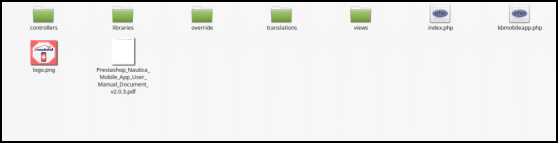
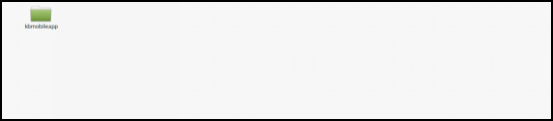
Purchase PrestaShop Mobile App Builder module from KnowBand store. You would get a zipped file containing the source code of the module. Unzip the file. You would get a file named “kbmobileapp”.

This folder contains the complete source code of the PrestaShop Mobile App Builder module as shown in the snapshot below:
Step 2: Move Source Code into Website Directory

Copy “kbmobileapp” folder into your store “modules” directory on the path – Root Directory/modules/.
Step 3: Install the Module

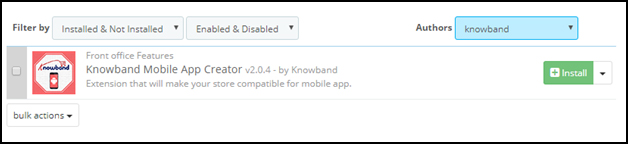
Now, the Prestashop mobile app builder addon is ready to be installed on your store and you can find that in Store Admin -> Modules and Services. It would be shown as below –
Step 4: Configure Module

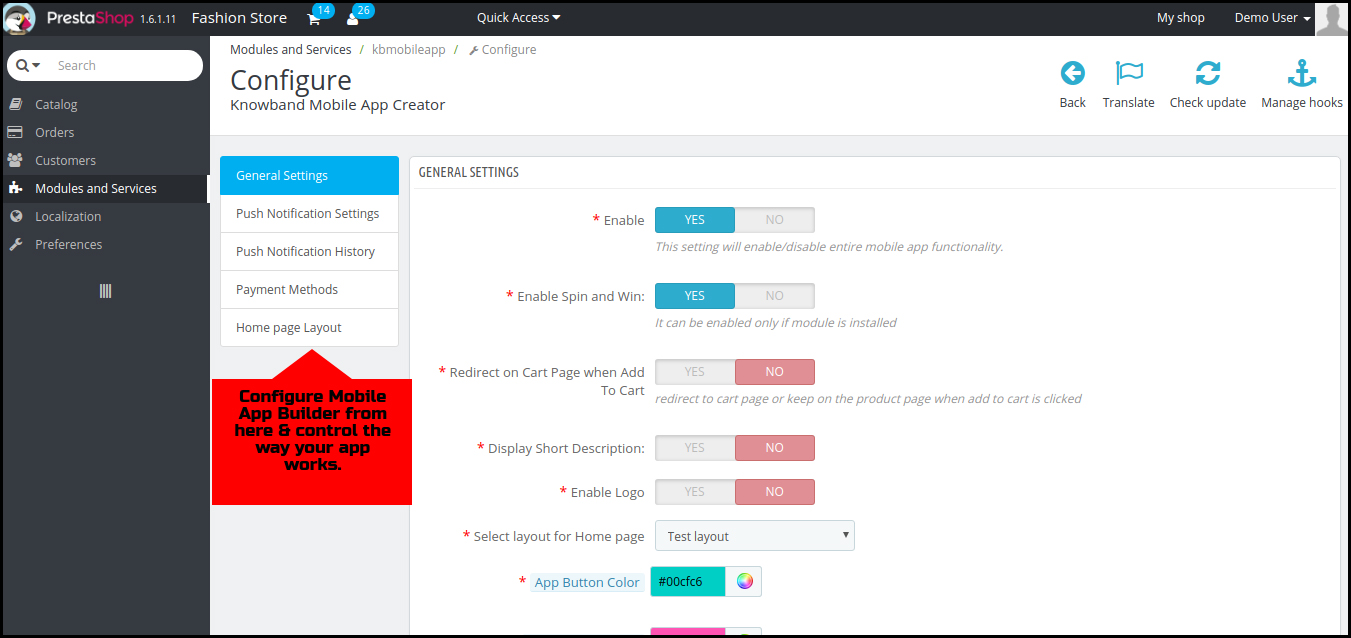
Clicking on the “Install” button would display a confirmation pop-up. Tap “Proceed with the installation” & your module is installed successfully. Click configure & start using the backend of PrestaShop Mobile App Builder.
Thus, using your FTP details, you can install the module on your PrestaShop website with facile. Now, you can start using PrestaShop Mobile App Maker module. Hope this document proves helpful to you.

So, What’s Next?

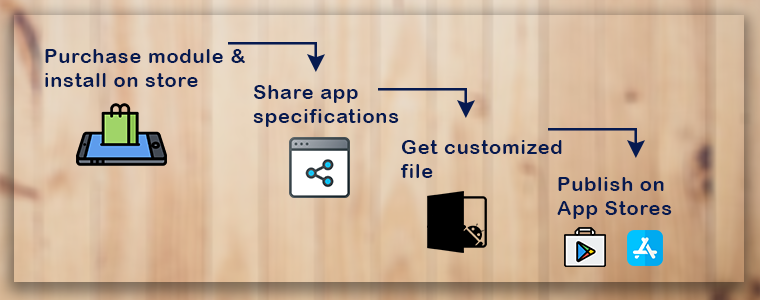
You have purchased the PrestaShop Mobile App Builder module & install the same on your website with the above-discussed process. Now, share the app requirements & specifications with our pre-requisites form & we would build & provide your apps in 1-2 days.
Proved helpful? There is another way as well to install the module. Have a look at the same:

PrestaShop Mobile App Builder Installation – Using Admin Details

PrestaShop Mobile App Builder Installation – Using Admin Credentials

This tutorial is intended with KnowBand’s PrestaShop Mobile App Builder installation on your website. All the e-merchants having their website on PrestaShop v1.6 & v1.7.

Well, installation of KnowBand’s PrestaShop Mobile App Builder on your PrestaShop website is just a matter of a few simple steps. Using your website back office admin details, you can install the module in a few minutes. Move on with the steps listed below:

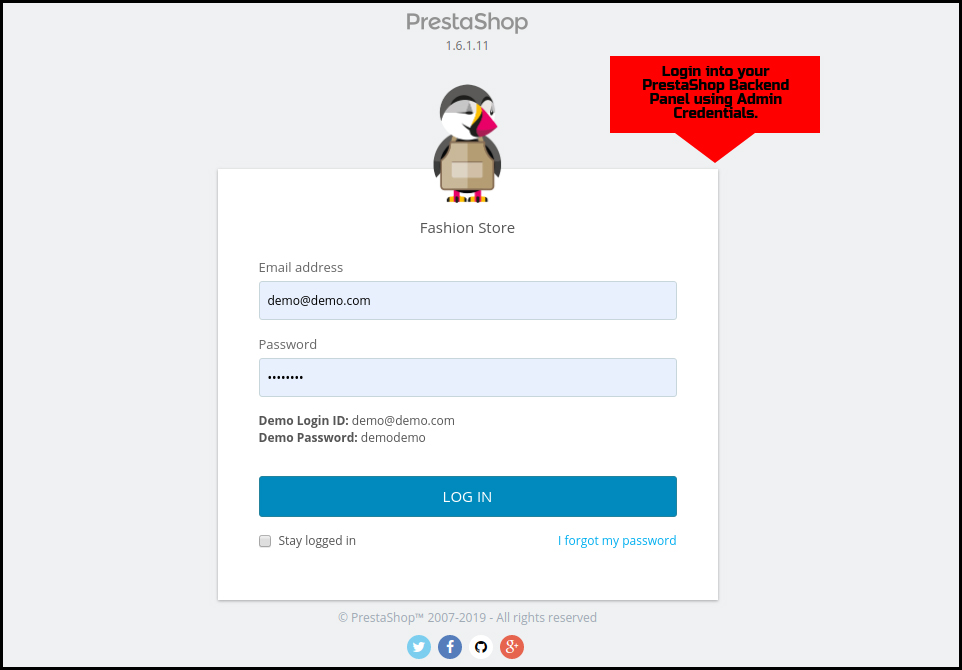
Step 1: Login Using Backend Details

Login to your PrestaShop website backend panel using your login details.

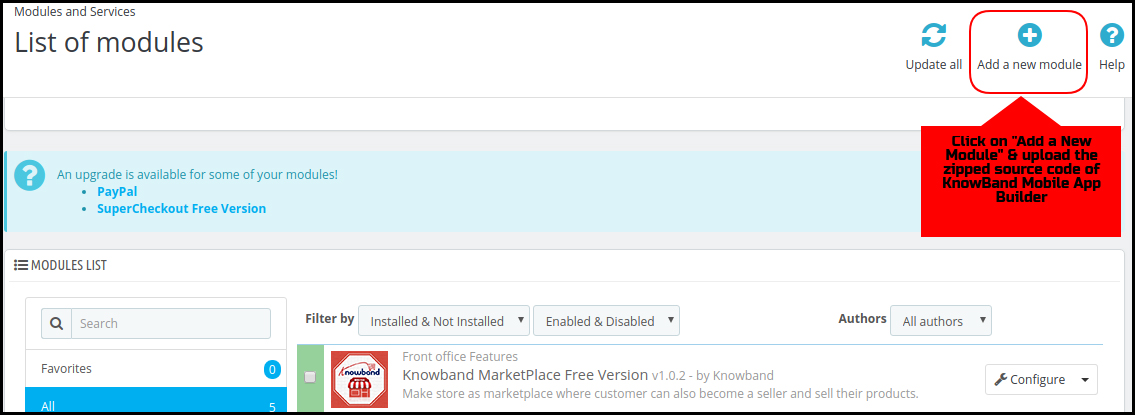
Step 2: Add Source Code on your Website

On the top-right corner, there is an option to “Add New Module”. Click & install the zipped source code of PrestaShop Mobile App Builder. You will get the required zip file once the module is purchased.

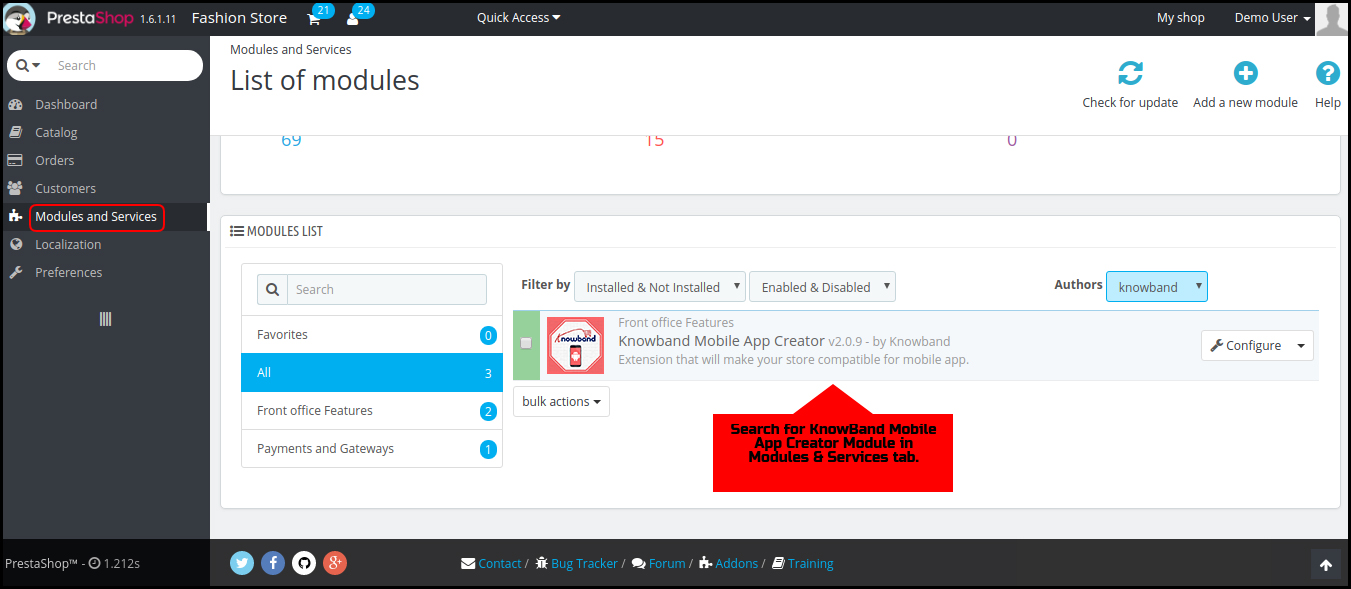
Step 3: Search for the Installed Module

Go to Modules & Services tab and search for KnowBand Mobile App Creator module.

Step 4: Configure the Module

Click “Configure” & next screen would be of KnowBand Mobile App Builder.

That’s it! You have successfully installed the PrestaShop Mobile App Builder plugin on your store & ready to configure the same. Hope, this tutorial proves helpful to you.

Done! What’s Next?

Once you have successfully installed the PrestaShop Mobile App Builder plugin on your website, we would share a pre-requisites form with you. This form would gather all the specifications & requirements of your app for a better understanding of our developers. That’s it! Now, sit back & relax. We would get back to you with your app.

Liked Article? You can opt for module installation using PrestaShop website FTP details. Here is the link to the same:

PrestaShop Mobile App Builder Installation – Using FTP Details