
The Prestashop Gemini Content Generator/Translator Addon is a cutting-edge tool designed to transform content management for Prestashop store owners. This advanced module harnesses the power of AI to simplify content creation and translation, making it a must-have for modern eCommerce businesses. Moreover, with the Prestashop Gemini Content Generator Module, you can quickly generate engaging product descriptions, attention-grabbing product titles, and SEO-friendly content. As a result, your store’s online presence improves, attracting more visitors and enhancing the overall customer experience.
In addition to content generation, the AI Content Generator for Prestashop seamlessly integrates with Prestashop Gemini, ensuring smooth and efficient operation. Furthermore, its SEO Content Generator feature guarantees that all content is not only original but also fully optimized for search engines. On top of that, the module comes with the Prestashop Gemini Content Translator, an AI-driven translation addon that enables store owners to expand their business into international markets with precise and context-aware translations.
Whether you’re handling multilingual content or aiming to enhance the efficiency of your content strategy, the Prestashop Gemini Content Generator Addon simplifies the entire process. Additionally, the Prestashop Gemini Content Translator Module combines state-of-the-art AI with user-friendly features, allowing merchants to save time while enhancing their stores with high-quality, multilingual content.
1.0. Key Features of Prestashop Google AI Gemini Content Generator/Translator Addon:
Seamless Content Creation – Easily generate high-quality product titles, detailed descriptions, and well-optimized meta tags with the Prestashop Gemini Content Generator Module. This saves time while ensuring uniform and engaging content across your store.
Advanced AI Engines – The Prestashop Gemini Content Generator and Translator addon is powered by multiple AI models, including Gemini 1.5 Flash, Gemini 1.5 Pro, Gemini 1.5 Flash -8b, Gemini 2.0 Flash, and Gemini 2.0 Flash – Lite Preview. Therefore, with these cutting-edge AI engines, you can create highly creative content and translate it with precision to meet diverse store requirements.
Optimized for SEO – Improve your store’s search rankings effortlessly with Knowband’s AI Content Generator. The Gemini content translator for Prestashop helps generate SEO-friendly content that drives more traffic to your website.
Effortless AI-Powered Translation – Expand your business globally by translating your store’s content into multiple languages with ease. The AI Translation Addon for Prestashop ensures accurate and context-aware translations with minimal effort.
Easy to Set Up and Use – Designed with a user-friendly interface, the Prestashop AI Content Creator is simple to install and operate, even for store admins without technical expertise. Furthermore, this ensures a smooth and hassle-free onboarding experience.
Category and Meta Tag Automation – Quickly generate and translate category names and meta descriptions with precision. This feature ensures professional and consistent content throughout your store with just a few clicks.
Bulk Content Generation – Ideal for stores with large product catalogs, the module supports batch content creation. Thus, this allows you to process multiple items simultaneously, significantly increasing efficiency.
Improved Store Management – Streamline content management tasks, making product updates quicker and boosting overall operational efficiency. This feature benefits both small and large-scale businesses.
Multi-Language Compatibility – The module supports all languages, including right-to-left (RTL) scripts, ensuring flexibility for global businesses. Additionally, it is compatible with multiple Prestashop versions, making it a reliable solution for a wide range of stores.
2.0 How to Generate the Gemini Key for Module Configurations?
To enable Gemini functionality in your PrestaShop module, you must configure an API Key.
To use Gemini features, you need to set up an API Key. Please follow these steps:
Step 1: Obtain an API Key:
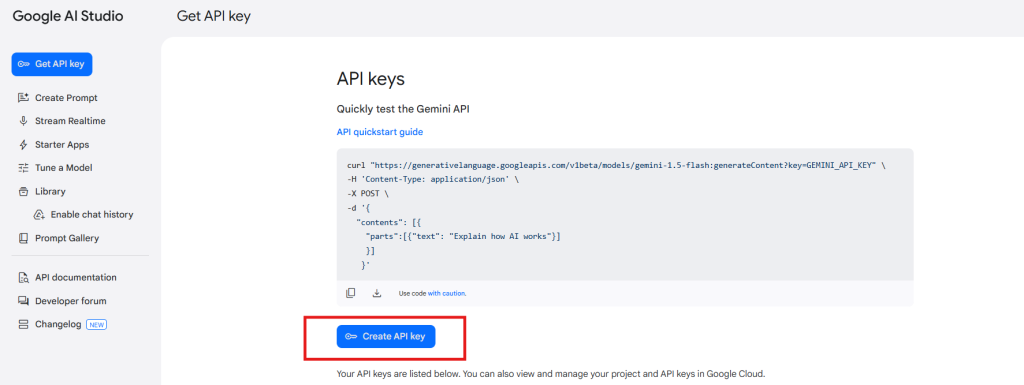

- Go to the Gemini API Key generation page at https://aistudio.google.com/app/apikey and log in or create an account if you haven’t already.
- Click on “Create new secret key”. Copy this key for the next step.


Step 2: Enter the API Key in Your PrestaShop Module:
- In your PrestaShop Back Office, go to the “Knowband Prestashop Gemini Generator/Translator” General Settings page.
- Paste the API Key into the provided “API Key for Gemini” field.
Step 3: Save the Settings:
After entering the API Key, click “Save” to store your settings. The Gemini module will now use this key to interact with the Gemini API.
Important:
Billing Requirement: Ensure that you have a sufficient credit balance in your Gemini account for the API to function. If your credit balance is depleted, the API requests will not work. You can check your balance and add funds by visiting the billing overview page at https://aistudio.google.com/app/apikey.
Keep your API Key secure and do not share it publicly, as it is linked to your Gemini account usage and billing.
3.0 Installation Guide for Prestashop AI Content Creator Addon:
Once you purchase the addon, follow the below steps:
- Go to the Store Admin -> Modules and Services.


- Click on “Upload a module”. You can drag or drop the file or can simply select the file from the system.
4.0 Admin Interface Overview:
4.0.1 General Setting:
The Google AI Content Generator for Prestashop allows the admin to configure the module and handle bulk content operations within just a few clicks.
Here is a Brief Overview:


Enable/Disable: Enable/Disable the Prestashop Gemini Content Generator.
API Key for Gemini: Paste the API Key into the provided “API Key for Gemini” field.
Gemini Engine for Content Generation: This module utilizes a range of advanced AI models, including Gemini 1.5 Flash, Gemini 1.5 Pro, Gemini 1.5 Flash -8b, Gemini 2.0 Flash, and Gemini 2.0 Flash – Lite Preview. With these state-of-the-art AI engines, you can effortlessly generate compelling content and translate it accurately to meet the unique needs of your store.
Temperature: Enter the temperature here. A higher temperature value leads to a more creative content tone. Whereas, a lower temperature shares more focused and relevant content.
Maximum Tokens: Enter the number of maximum tokens here. The term “tokens” stand for the chunks of words of characters. Keep the default value as 500.
Gemini Engine for Translations: Select the Google Gemini AI engine for your content translation.
Primary Language for Translation/Content Generation: Select the default language to be used for generating and translating content.
Languages to Translate Content: Select the different multiple languages for content translation.
4.0.2. Gemini Prompts:
The module includes 14 built-in Gemini prompts, designed to assist with a variety of tasks. Below is a list of these prompts along with their functionalities:


Generate Product Description: Generate a detailed SEO-Friendly and engaging product description for the following product {product_name}. Make sure the description includes the main features, benefits, and use cases of the product. Please use HTML tags for formatting so the content is ready for a web page. The product is listed in the {category} category
Generate Product Meta Title: Generate a concise and catchy meta title for a product named “{product_name}” in the “{category}” category. Keep the title under 60 characters. Avoid using double quotes. The title should include the main keyword and attract potential customers.
Generate Product Meta Description: Generate a compelling meta description for the product named {product_name} which lies in the category {category}. Limit the description to about 140 characters.
Translate Product Title: Translate the following product title and make sure to give translated content only
Translate Product Description: Translate the following product description and preserve the HTML structure and tags, and only translate the visible text content and make sure to give translated content only.
Translate Product Meta Title: Translate the following product Meta Title and make sure to give translated content only.
Translate Product Meta Description: Translate the following product Meta Description and make sure to give translated content only.
Generate Category Description: Generate the SEO-Friendly Category Description for the {category} Generate a detailed, SEO-friendly category description for the “{category}” category. Please use HTML tags for formatting so the content is ready for a web page.
Generate Category Meta Title: Generate a concise and catchy meta title for a “{category}” category. Keep the title under 60 characters. The title should include the main keyword, attract potential customers, and avoid using double quotes.
Generate Category Meta Description: Generate a compelling meta description for the category {category}. Limit the description to about 140 characters and avoid using double quotes.
Translate Category Title: Translate the following category title and make sure to give translated content only.
Translate Category Description: Translate the following Category description and preserve the HTML structure and tags, and only translate the visible text content and make sure to give translated content only
Translate Category Meta Title: Translate the following Category Meta Title and make sure to give translated content only.
Translate Category Meta Description: Translate the following category meta description and make sure to give translated content only.
4.0.3. Gemini Prompts Task Log:


This tab displays comprehensive information about all executed prompts. It includes key details such as Prompt Type, Product, Category, Language, Previous Content, New Content, and Date, allowing for easy tracking and management.
5.0. How to Execute Gemini Prompts?
The Prestashop store retailer can generate and translate the content within a few taps from the Prestashop Backend>>Products tab.
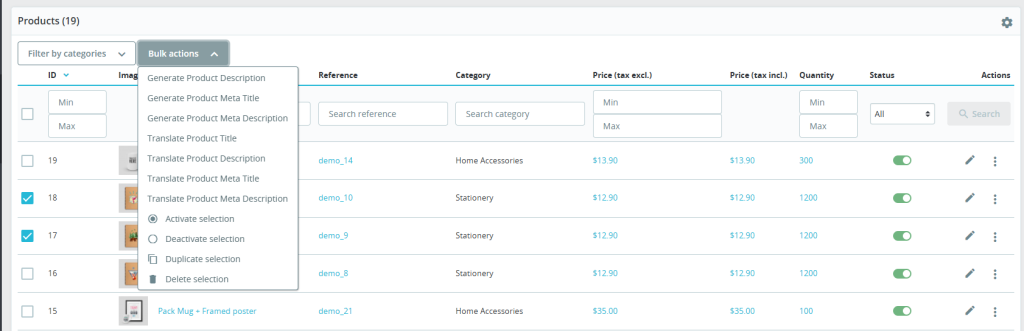

Choose the desired products and navigate to the Bulk Actions tab, as shown in the screenshot above. From there, you can select various prompts to perform different actions efficiently with the help of Prestashop AI Content Generator and Translator Module.
- Generate Product Description: Select multiple products and click on the “generate product description” button.
- Generate Product Meta Title: Generate the meta titles of products from here.
- Generate Product Meta Description: Select the products and click on the “generate product meta description” prompt shown under the bulk actions section.
- Translate Product Title: Translate the product titles from here.
- Translate Product Description: This prompt helps the store admin translate the product description into multiple different languages.
- Translate Product Meta Title: Translate the product meta title from here.
- Translate Product Meta Description: Select multiple products and hit the following prompt for product meta description translations in bulk.
